Documents
A wedding arrives on paper. The venue's contract, the caterer's invoice, the florist's quote, a screenshot of the band's booking page. None of it should ever be retyped. Get the document onto the wedding, any way you like, and it is read into the plan: a contract to the vendor it belongs to, an invoice to the budget line it settles.
Two tabs share the work. The Document inbox is where things arrive and get read; Documents is the wallet where everything lives afterwards. Both are reached from inside the wedding.
The document inbox#
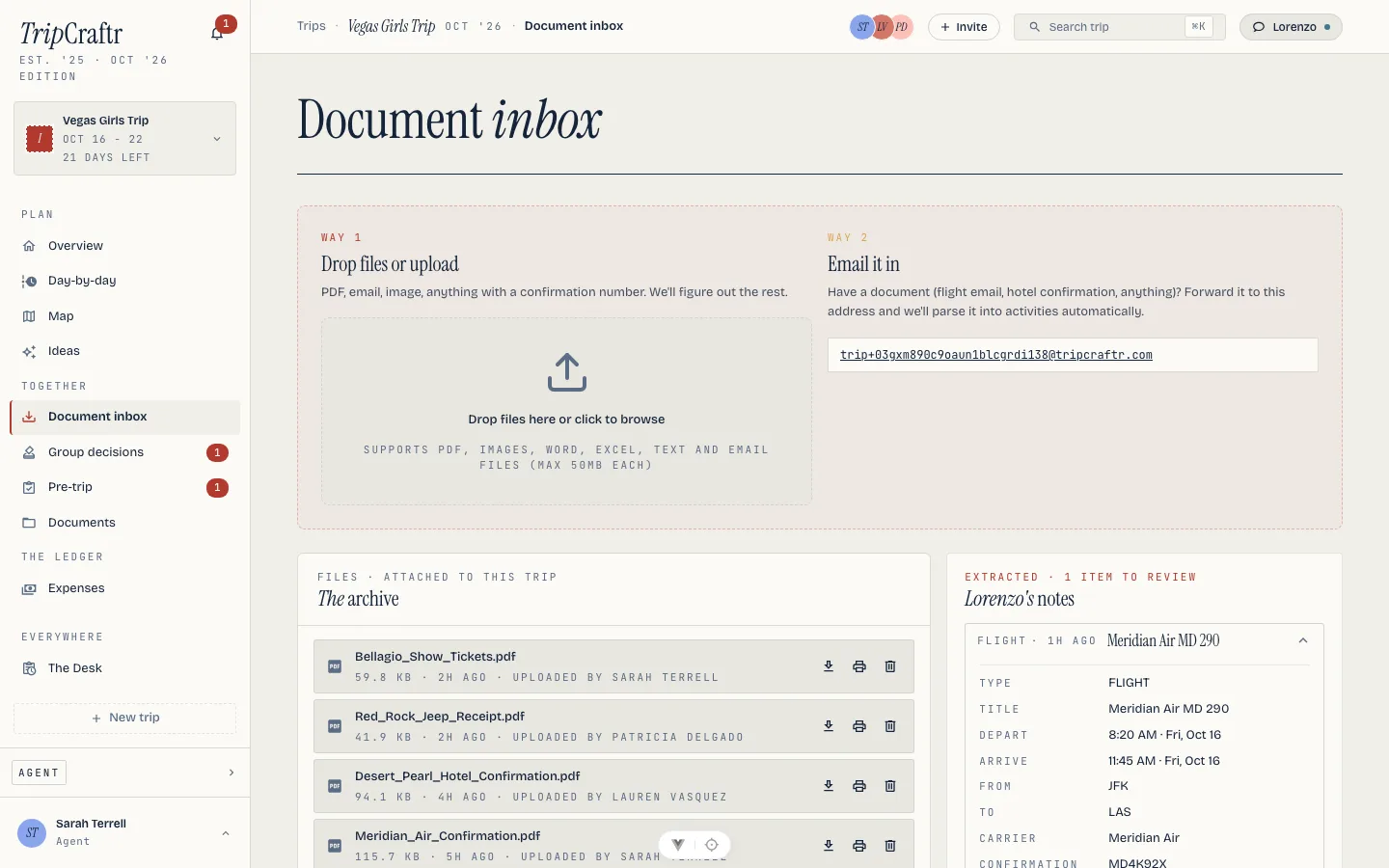
Ways in:
- Drop or upload. PDF, images, Word, Excel, text and email files, up to 50 MB each. On the phone: files, the photo library, or the camera straight at a paper invoice. Photos are converted and shrunk before upload, and the screen stays awake while it runs.
- Email it in. Every wedding has its own private address, shown on the inbox. Forward the caterer's invoice there and it lands like an upload. The phone's upload screen opens your mail app with the address already filled in.
- Chat. Files attached in Lorenzo's chat join the wedding too.
The sender of a forwarded mail must already be someone on the wedding: you, your team, the couple. Mail from strangers is dropped silently, so a vendor cannot post into the inbox by guessing the address. Forward it yourself, or attach the contract to the vendor's own record, which is covered in Vendors.
Lorenzo's notes#
Each arriving document is read and classified: a booking, other transport, dining, a receipt, inspiration, other. Status chips on the archive track it: PENDING while reading, then PARSED, or NEEDS YOU when it wants a human.
What was read appears under Lorenzo's notes as a proposed item, field by field: type, title, times, where, who it is with, confirmation and booking codes, the price paid. Three answers:
- Looks right confirms it onto the wedding's itinerary, which is where the couple's own flights and the welcome dinner's reservation sit.
- Edit fields opens the item form with everything pre-filled, for a correction before it lands.
- Not right, discard drops the extraction. The file stays.
Documents that turn out to be receipts and invoices route to the wedding's ledger as expense candidates instead, one tap to import. That is what makes the budget move: a payment recorded from a forwarded invoice settles the oldest unpaid milestone on its line, and the paid and left columns follow. See The budget. A pasted link to a booking page is unfurled the same way from chat.
The count of extractions awaiting review shows as a badge on the wedding's overview, so a forwarded contract never quietly rots unreviewed.
Example: the caterer's invoice#
- Mesa Longa mails Inês the second instalment. She forwards it to the wedding's address from her phone.
- It lands in the inbox, reads as a receipt, and appears in the ledger as a candidate.
- Inês taps to import it. The catering line on Ana & Luís's budget shows the instalment paid, and the due view stops listing it.
The wallet#
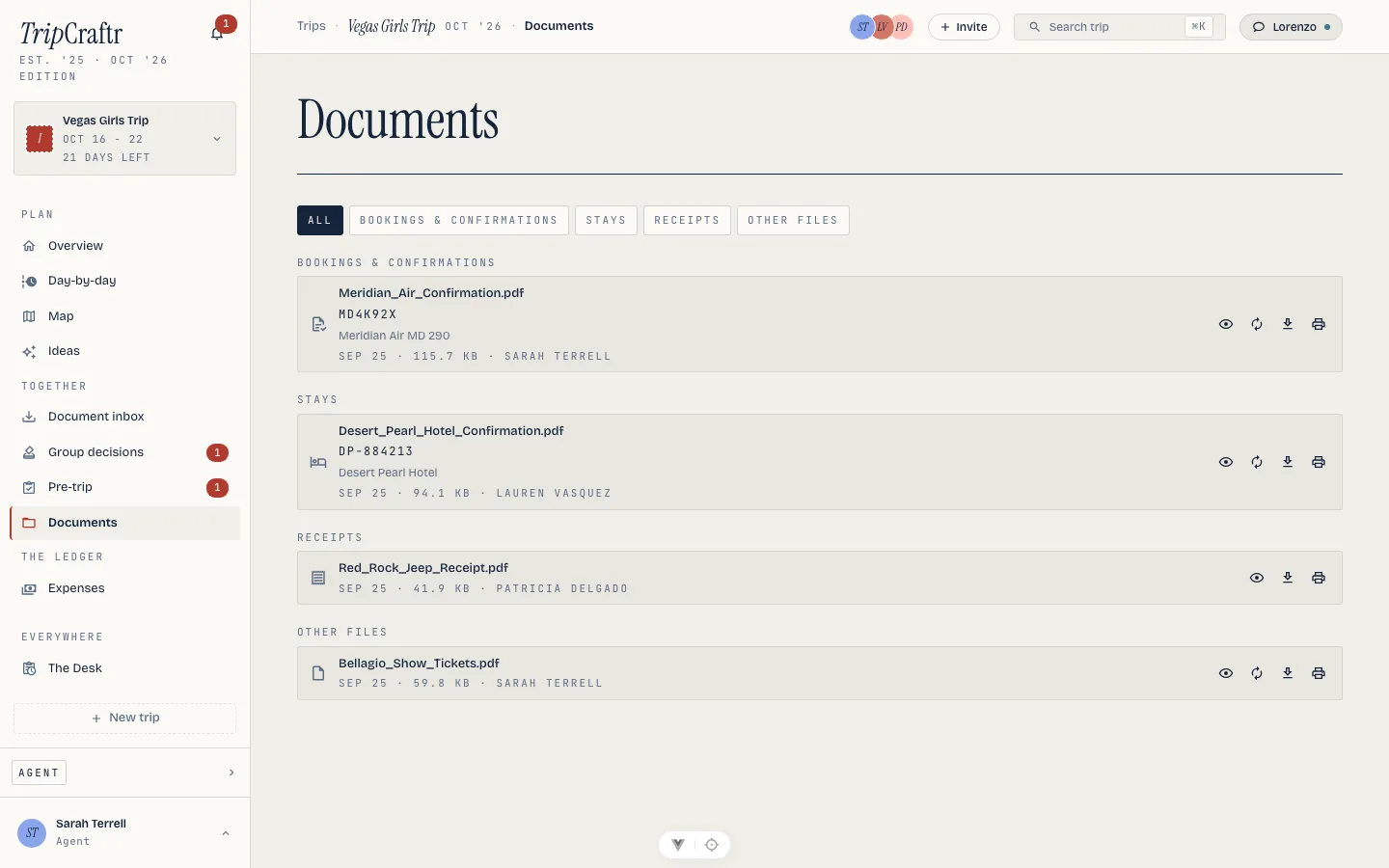
Every file on the wedding, one place, filterable by kind: bookings and confirmations, stays, receipts, other files. Rows show the confirmation code, what the document belongs to, size, date and who uploaded it.
Two kinds of paper find their way here without an upload. A contract attached to a vendor becomes an ordinary document on the wedding, so the venue's signed terms sit beside the florist's. And when the couple signs an agreement you sent them, the countersigned PDF lands in the wallet on its own once the deal is attached to the wedding. See Vendors and Clients, deals and getting paid.
Each document can be previewed in place (images open in a zoomable viewer; everything else is shown as PDF), downloaded, or printed. Items that came from a document link back to it, so the source is always one tap from the plan.
Everything in the wallet is searchable with ⌘K, by name, confirmation code or what it belongs to, from anywhere in the wedding.
Client documents#
Proposals, agreements, invoices and form requests are a different kind of document: the client opens them on a page of their own, not in the wallet. Each one has its own recipients — a link per person, with who it went to and whether they opened it — described in clients and getting paid. The countersigned agreement PDF files back here once it is signed, and its attached files are bound into it: a PDF page by page, an image as a page of its own, each hashed at the moment the couple signed. What they had to fill in on the contract — a date, an address, their initials — is kept with the signed document, so what you filed is what they answered.
What is free#
The wedding's documents are unmetered. What a free account carries is an allowance on the AI reading of them, five per wedding; the planner subscription lifts it. See Plans and billing.