Settings and email
Your account has one settings page and one set of email preferences, and they follow you across the web and the phone. This chapter covers both, and the mails a wedding sends on its own.
Settings#
The sidebar user menu opens Settings. On the phone it is the avatar, then the Profile hub. What lives there:
- Display name, the name the couple, your team and your vendors see.
- Appearance: light, dark, or follow the system, plus the tone options. The map follows it too.
- Language: English, Spanish, Portuguese, French or German. The app's interface, the mail WeddingCraftr sends you and Lorenzo's replies all follow it. Inside a wedding's chat Lorenzo writes in the wedding's own language, the one it was begun in, so the couple, the planner and the team all read one language. The sheets that go out to vendors and the pages a guest opens are written in the wedding's language as well, not in yours.
- Preferred currency, the default lens for money outside a wedding.
- Home city, with city autocomplete, so "from home" means something.
- Preferred airport, with airport code search, for the guest travel a wedding abroad brings with it.
- Password reset, which sends the email rather than asking for the old password in place.
- The danger zone: delete the account. Type DELETE to confirm. The account and everything it owns is permanently removed, storage included, and you are signed out. There is no undo. Weddings you own go with it, so hand one to a teammate first if it should outlive you.
Your plan does not sit on the settings page. The plan badge in the sidebar shows where the account stands and opens Plans and billing.
Reminders and receipts#
This is the one place your clients are told about money on their own. It sits on Billing details, and it is off until you turn it on — a planner who never touches it has a quiet inbox.
- Email my clients about what they owe is the switch. With it on, every payment instalment on a sent invoice produces a mail at the offsets you set, in the client's own language, in the wedding's brand, in your name, and replying to you.
- Before it is due and after it is overdue are chips of days, up to three and up to four. On the day it is due is its own switch. Every one of those is a separate send, so "a week before, the day itself, and three and ten days late" is four mails, not one.
- Send at is the hour in your timezone. Your clients do not have an account and we do not ask them for a timezone, so your clock decides the morning. Pick a time the couple is likely to be awake.
- Email a receipt for every payment covers a card, a transfer, cash you recorded by hand and a refund. The receipt says the amount, the method, the date and what is still open, and links a printable page.
- Thank clients when an invoice is settled sends one note the morning after an invoice is fully paid.
- Email a copy of every agreement they sign sends each signer the signed document, with its PDF, once, when the last signature lands.
There is one more, and it only exists when you offer it. With Offer to pay the later instalments automatically on, a client paying by card is offered, on their own page, one tick box to save their card and have the rest charge itself on each due date — the wording they agreed to and the dates it commits them to listed right under the tick, because a charge made months later rests on those words. Days before a charge to write is the notice window, and it is yours because a bank debit's advance notice is a rule rather than a nicety. They are written a note before each charge, and they can turn it off from that same page at any time without writing to you. A card that declines is tried once more three days on; if it declines again, or the bank says the payment needs their authentication, the automatic payments stop and you are told. You see the saved method on the invoice and can remove it, which also stops the charge.
Every reminder's footer carries a stop reminders link for that one invoice. A client who presses it is never mailed about that invoice again, and you get a bell telling you they did. You can pause the same invoice yourself from its detail. Receipts and signed copies carry no stop link: they answer something the client just did. The notice before an automatic charge does carry the same stop link, because it is a reminder; what ends the charge itself is the client's own turn-off, or withdrawing the method, and neither sends a further letter — they already decided.
If an address bounces or is marked as spam, every one of these lanes skips it, and the client's card tells you so with a Clear once you have fixed the address.
Tips, automatic payments and the ways clients pay#
Three more blocks sit on Billing details, beside the client mail.
Offer a gratuity on the pay page is the switch, and the percentages beside it are the choices a client is offered. They can also type their own figure. A gratuity is charged with the payment and shown on it, and it never changes what the invoice is owed — a tip is money on top of what you asked for, and it is the last thing a refund covers, because the service was not withheld.
Offer to pay the later instalments automatically and its Days before a charge to write are described above, under the client mail, because that is where a client meets them.
Other ways clients can pay is yours to name. Each one takes the name the client will read, the instructions they should follow, and the ledger entry a payment by it is filed under — so a Zelle transfer is not filed as a cheque, and a rail you have named nothing for is filed as something else rather than guessed. They appear on the client's own page and on the printed invoice under Other ways to pay, which is how they reach a client holding the paper copy who cannot click anything, and they lead the picker when you record a payment, under their own name.
Ways to pay on the payments page is the account's own half: the card, which is always on, and a US bank account and SEPA debit beside it with what each is waiting on. Switching a bank debit on asks Stripe to review it, and the status beside it says "pending review" until the account can actually take one — a rail that is still being reviewed never appears on a client's page as a button that would do nothing. Switching one off needs nothing and is your decision alone.
Fields#
Fields is where you define your own columns. Add one per entity — a lead, a client, a vendor, a guest — give it a label, and choose what it holds: text, a number, a date, one choice, several choices, a yes/no or a link. The key is generated from the label and never changes, and the type is fixed once the field is created.
Definitions are shared with your team, and a value is visible to whoever can read the row. Vendors and guests belong to the wedding brand; leads and clients appear on both doors. A field you stop using is archived, not deleted: its values stay on the rows and restoring it brings them back. Delete removes the definition, after telling you how many rows still carry a value.
The same fields appear on the entity's own editor — the new-deal sheet, the client panel, the vendor and guest sheets — and one you added is offered as a column in the guest and vendor CSV templates.
Messaging#
Messaging connects the account to Lorenzo outside the app. The available channels are WhatsApp, Telegram and SMS; a channel appears only when the product has that channel configured for the brand.
Press Connect and the product mints a short-lived linking code. The code counts down while you finish the connection in the other app, and the page watches for the connection so you do not have to confirm it by hand. When it is connected, the card shows the linked account and a way to open the chat or disconnect it. An expired code can be replaced with a new one.
Lorenzo's response mode (respond to everything, only when mentioned, or off) is not here either. It lives in the chat's own menu, on the web and on the phone. See Lorenzo.
Notifications#
The bell in the sidebar counts what happened while you were away, and the same inbox is on the phone. It carries the events that would otherwise wait for you to open the right screen: a new enquiry from your intake form, a quote accepted or declined, an agreement signed, a form completed, an invoice or a payment request paid, a proposal about to run out of time and one that has, and a task handed to you.
The bell's menu shows the latest few, with See all for the full page. On the page, filter pills narrow the list by Leads, Documents, Forms or Tasks, Mark all read clears the count, and each row says who did what and opens the thing it is about. Reading a row clears its mark on every device you are signed in on.
Notifications in Settings holds the switches: one row per kind, with In the app and On your phone. Turning In the app off stops the row being written at all, so no push and nothing in the list; turning On your phone off keeps the row in the inbox and sends no push. Only the kinds your account can receive are listed.
The Profile hub on the phone#
On the phone, Settings is the Profile hub: the same account rows (details, plan, appearance, language, messaging, email preferences, notifications, security) and, underneath them, the work surfaces. A planner reaches the weddings board, the little black book, the deals board, invoices and the billing details, agreements and the team desk from there. Client Replies is an agent-only desk, so it does not appear for a WeddingCraftr planner. A link to this manual sits there too. See The phone app.
The email WeddingCraftr sends#
Four kinds of optional mail, each with its own toggle on the email preferences page, which is linked from every email's footer:
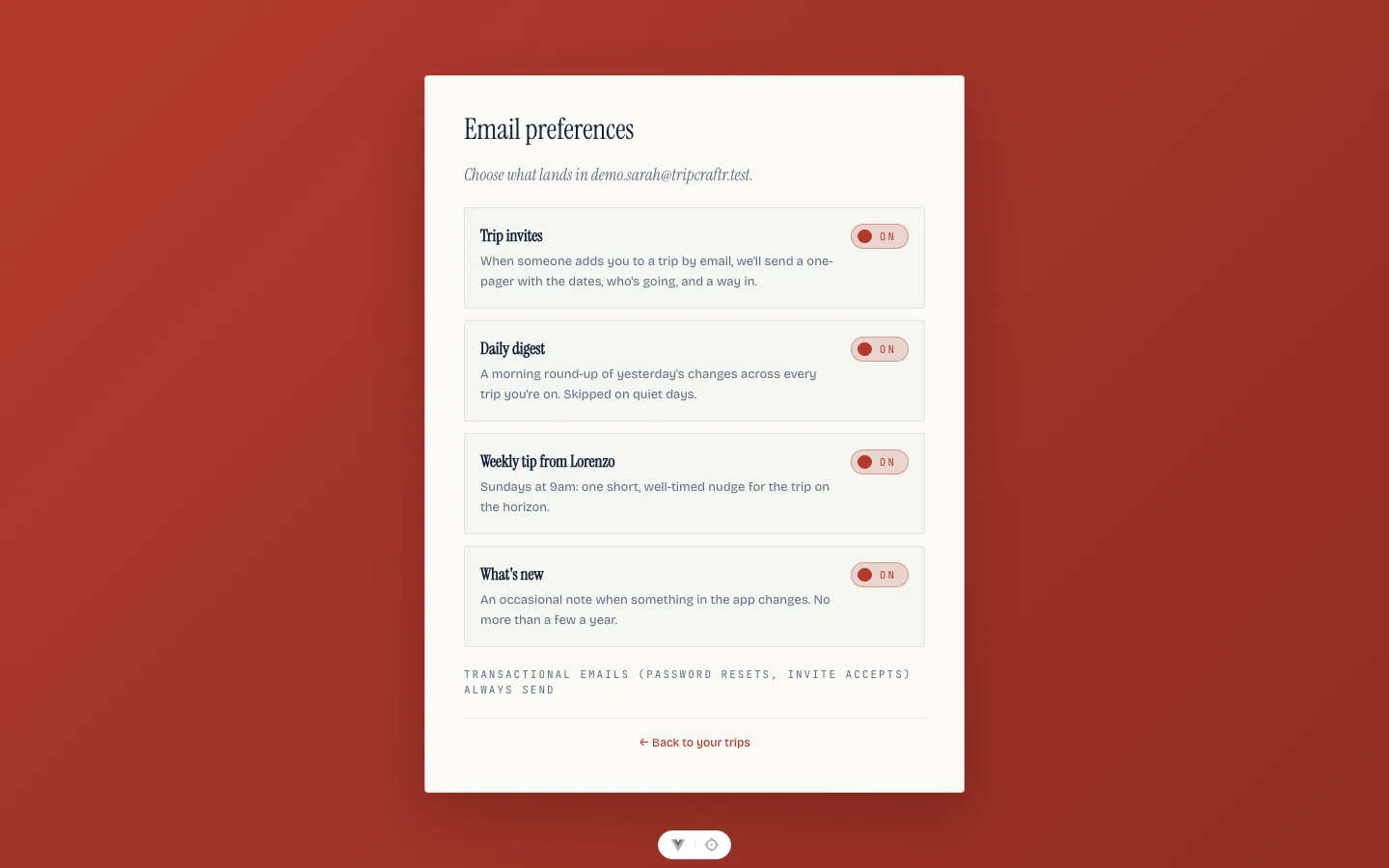
- Invites: the one-pager when someone adds you to a wedding or a trip.
- Daily digest: a morning round-up of yesterday's changes across everything you run, skipped on quiet days, timed to 8:00 in your own timezone. Everything that waits on you folds into it: an enquiry left past its next-action date, a payment request or an invoice a week from due, a day from due, and once when it is overdue. A form nobody has answered chases the client instead, not you; see Clients and getting paid.
- Weekly tip from Lorenzo: Sundays at 9, one well-timed nudge for what is on the horizon. Anything he flagged as a warning rides along.
- What's new: an occasional product note, no more than a few a year.
Transactional mail (password resets, invitation accepts) always sends.
The unsubscribe link at any email's foot is one click and covers every non-essential category at once; see Sharing outside the app.
The addresses a wedding receives on, for forwarding a contract or an invoice into it, are covered in Documents.
The six wedding emails#
Wedding mail belongs to the couple. The masthead carries their names and the ceremony date, and the sender's name is the planner writing to the couple or the couple's names writing to the planner.
| Who gets it | When | |
|---|---|---|
| One thing is waiting on you | the couple | their local morning, when something is waiting; the link opens their trip on TripCraftr |
| The week ahead | the planner and their team | Monday morning, local |
| A payment is due | the planner and their team | a week before a milestone falls due, and again the day before |
| A block releases | the planner and their team | a week before a room block is released, and again the day before |
| Your run sheet | one booked vendor | when you press Send their sheet |
| The honeymoon | the couple | fourteen days after the ceremony, once |
A payment is due names the milestone, "the caterer's second instalment," rather than just "the caterer." A per-head milestone also names the count it was priced at, so a mail about the final balance says which headcount it used, and the due view carries whatever the count has moved to since.
The payment and the block travel together, on the same schedule and the same two dates, because a block that releases is money as surely as an invoice is. Rooms nobody is in on the release date go back to the hotel, and the guest who books one the week after pays what the hotel is asking then. See Rooms and travel.
The vendor's sheet is the odd one out and stays outside all of that. It is the only wedding mail you send by hand, the only one that goes to somebody outside the couple and the planner, and the only one that carries a whole document rather than a nudge. It rides no preference, because a vendor has no account to hold one. See The run sheet.
The four that go out on their own ride the reminder preference in your email settings, and all four stay quiet when there is nothing to say. A wedding with nothing due, nothing unanswered and no guests still to answer sends no Monday mail at all. On Inês's Monday, Ana & Luís's wedding writes to her about the caterer's instalment falling due on Friday and the two households still silent; a wedding with a clear week says nothing.
They are the one set of emails with no quiet-period rule. A wedding is a nine-month engagement with long quiet stretches in it, and the person who has not signed in for two weeks is usually the person holding the approval up.
The honeymoon mail#
The sixth mail breaks the shared rules on purpose. It lands exactly fourteen days after the ceremony, never a window: a season's backlog mailed the morning this shipped would read your wedding was months ago, here is a honeymoon, worse than no mail at all. It goes to the couple alone, each of them their own copy, and it does not check that either can still open the trip, only that the wedding still names them and they hold an account: by then you may have moved on to your next wedding, or closed your own account, and it sends anyway. It wears TripCraftr, not WeddingCraftr, because by then it is about their next trip, not this one. It says the wedding is done and the honeymoon is a trip, and opens Lorenzo's planning chat with their opening line already typed for them. Once, per person, ever. See The couple.
The name on the envelope#
A wedding's mail (the couple's approval, the week ahead, a payment falling due, a vendor's sheet) comes from WeddingCraftr for every reader on it, the couple and the vendor included, and the masthead carries the couple's names. Mail about your account rather than about a wedding (the welcome, a password reset, the digest's masthead) wears the WeddingCraftr name too, and either way the reply address reaches the same people. The one exception is the honeymoon mail: it wears TripCraftr's own name, because by then it is addressed to the couple's next trip rather than to yours.