Tasks and workflows
A wedding is thirty or so jobs that have to happen in the right order, and almost none of them happen on the day. Tasks are that list. They came out of the couple's chapter when the list outgrew it: the countdown is a task list, the board is the same list by column, and the workflows chapter sits next to it because a task is what a workflow produces.
The countdown#
The countdown is about thirty standard jobs, from a year out to the morning of, dated back from the ceremony and filtered to the modules that are on. Seed the countdown lays them out; pressing it again adds only what is missing, so it is always safe. Lorenzo lays it out too, when you ask him to.
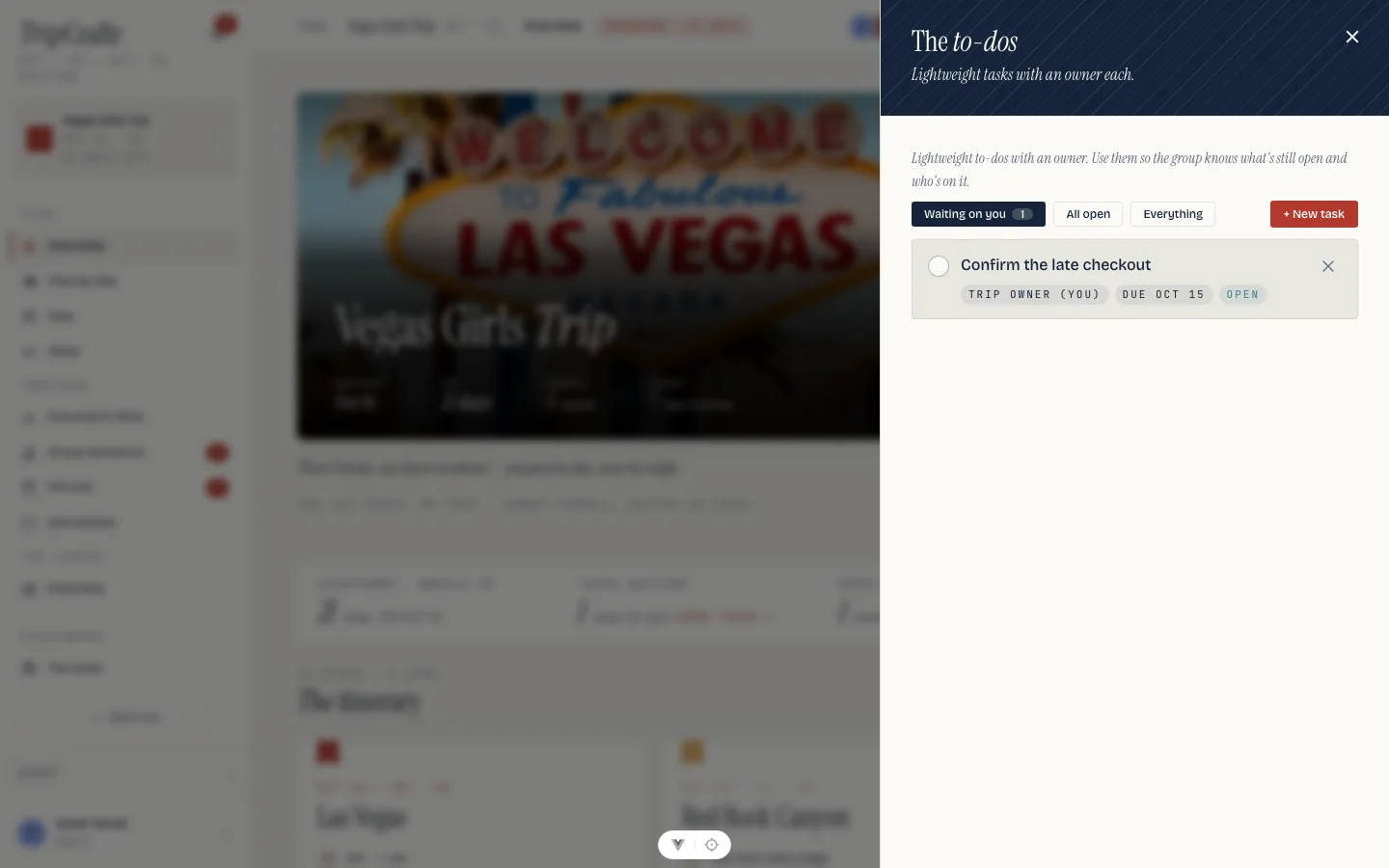
They land as ordinary tasks on the wedding, which means one owner each and one shared tick. That matters: "book the florist" is one job, and a per-person checkbox is how two people each decide the other did it. Assign each to your team or to the couple. A task is deliberately light: a title, an optional note, an owner, a due date. Filters cut the list to Waiting on you, all open, or everything. Complete, reopen and delete are one tap each, and completed tasks keep their record. Lorenzo can create tasks from chat, and any of his notes can be turned into one, so "someone should confirm the transfer" becomes a task with a name on it.
They group by lead time: a year out, nine months, six months, three months, the month before, the week of, and the day itself. The critical ones are marked, and the header counts what is done and how many critical jobs are still open. One of them, send the run sheet to every vendor, ticks itself once every booked vendor with an address has been sent theirs; see The run sheet. On the phone this tab is called Checklist.
The countdown is one of the modules unlocked by your planner subscription. See Plans and billing.
The board#
The list answers "what is left". The board answers "what is stuck", which is a different question and needs a different shape: To do, In progress, Blocked, Done, Cancelled, five columns, one card each. Switch with List and Board at the top of the panel; both are the same tasks, and both are yours for the whole team.
Drag a card between columns, or within one. Dropping it on another card puts it above or below, not on top, and the order holds: a column is a queue and the queue is real. Two people dragging into the same column at the same moment are ordered correctly too — the move takes a lock in the database, so the second one lands where it reads rather than overwriting the first.
Filters narrow both. Status, who it is for, category, and a date range, and Group by for the list. The filters are remembered per wedding, so a filter you left open yesterday is still open today. The count at the top says how many are open and how many are overdue, so the second number is the one that matters on a Tuesday.
Who a task is for#
A task can have several people on it at once — a teammate, both partners, and a vendor. They are separate rows against the task rather than one "owner" field, which is what lets "both partners plus the florist" be one job rather than three. Assign to the couple does the two partners in one press.
Three kinds of assignee exist and a task can carry more than one of each: a person (a guest, a partner), a vendor on this wedding, and a user (you or a teammate). A person with an account is reached through that account, which is why the couple is two ids and not a flag.
What the couple sees is a per-task decision, and you can close it from either side. A task is hidden, visible or editable to them, and the default follows the countdown: the couple's own jobs are theirs to tick, the backstage ones are yours. They see no timing and no team comments, and their activity feed names no task you have hidden.
A vendor can be one of the people a task is for, so the job reads as theirs on your list. They have no account, and for now you tick it for them.
Status on the phone#
On the phone the countdown's rows carry their status as a word. Press it to move the task to another status; on the board view the same menu moves it up or down its column. Long-press still lifts a row for the bulk Assign to… bar.
Workflows#
A workflow is a named list of dated tasks: each is counted from the ceremony, from the day the wedding was booked, or from the day you apply it, plus or minus a number of days, and can be handed to whoever applies it or to the couple. Workflows (from the tasks panel, or on the phone from the checklist's menu) is where you build them, next to your task categories.
Apply a workflow shows the days each one would land on and then writes the tasks. Apply two and you get both sets; apply the same one twice and you get it twice. The dates are counted when you apply it, and each task keeps its own count, so editing the workflow afterwards never moves a task already on your list, and a task counted from the ceremony still follows the wedding if it moves, until you set its date by hand. A workflow you have not built yet can start as a wedding's own tasks: save them and the dates become offsets from that ceremony.
The same page holds your task categories: a name and a colour each. Archiving one takes it out of the picker and leaves it on the tasks that already carry it.
Reminders#
The morning before a task is due, whoever it is for gets a bell entry, a push and one mail listing everything due that day; the morning after, if it is still open, they get one more. "Morning" is eight o'clock where they are, and a task is only mentioned to someone who can open it. Turning email reminders off in settings stops the mail and leaves the bell.
Time#
Start a timer on a task, or log minutes by hand, and the time is yours to read: only you and your team see it, the couple never do, and a lead's time follows the lead onto the wedding it becomes. Time report totals a wedding by person and by task, with what was billable and what named no task. One timer runs at a time.
From a client's reply#
A reply that asks for something becomes a task with Make a task, in Client replies on either app. It carries the subject as its title, links back to the message, and stays hidden from the couple until you share it.