The run sheet
The run sheet is the day itself, minute by minute, one moment at a time, with the vendor responsible on every line. It is the screen the phone app opens a wedding on, the sheet each vendor is sent, and the thing you shift when the venue is running twenty minutes late.
The sheet#
Every line carries a time, what happens, how long it takes, who is on it and a note. Lines sit inside a moment, and every clock is in that moment's own zone, so a wedding abroad runs on the venue's clock rather than yours. The moments themselves are covered in Beginning a wedding.
The order inside a moment is the clock. Two lines at the same minute are put in order by hand, and a line dropped between two others takes the time of the one it lands after. See Putting lines in order.
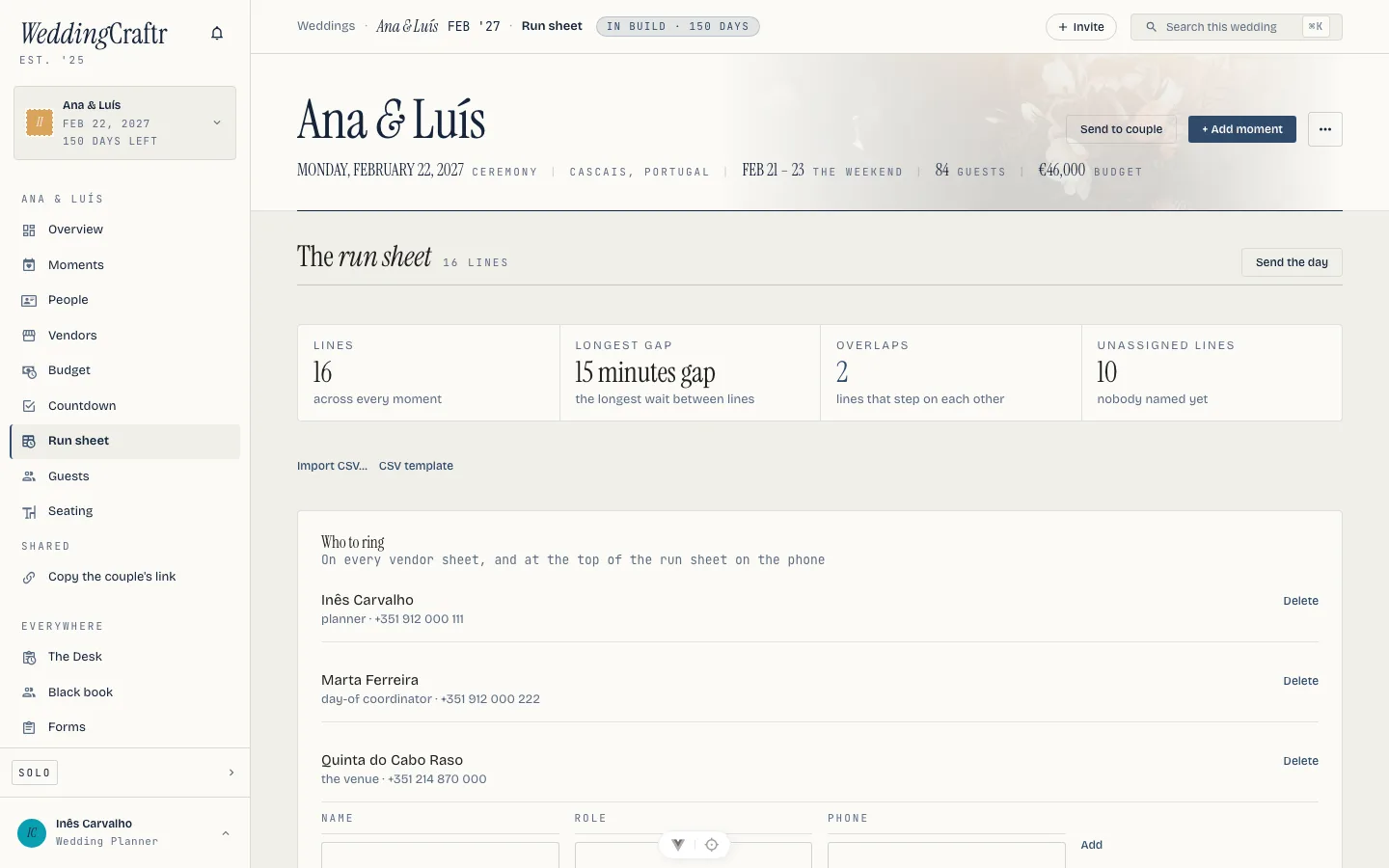
Four figures sit above the web sheet so a planner can see the shape of the day before opening every line: Lines counts the running order, Longest gap names the quietest interval between lines, Overlaps counts moments where two lines run into one another, and Unassigned counts lines without a vendor. The figures are read from the same clock the planner edits, not from a separate calendar.
A run sheet imports from a CSV, or from the Run sheet sheet of the workbook
described in Beginning a wedding:
moment, time, what, how long, who, notes. Times are read as the moment's own
clock, so 14:30, 2:30 pm and an Excel time all work, and a line whose moment
the wedding does not have is reported rather than guessed at.
What a line can carry#
A line is more than a time and a title. Open it and you can add:
- A note with a list or a checklist. What you write is what the vendor sheet, the morning text and the calendar feed carry, as plain text.
- A highlight. One per line: a colour stripe and an icon down the side of the row, for the lines you want the eye to find, such as Photo moment or Couple needed.
- Badges. As many as you like: small chips such as Catering, AV or Transport.
- Steps. The line's own breakdown. A step is either timed from the line's start (10 minutes in) or simply ordered (step 2). When the line moves, its timed steps move with it.
Highlights and badges are yours, not the wedding's. Make them once, in Manage labels (or from the line itself, the first time), and they are there on every wedding you and your team work on. Colours come from a set of six, so a highlight means the same colour on every wedding. A label you archive stays on the lines that already wear it and cannot be put on new ones.
On the phone the same things are in the line's sheet: the note opens in its own editor, and the steps, highlight and badges sit under the vendor. Tap steps on a row to see its breakdown in place. The phone's Labels action opens the same label book.
Timelines#
A wedding has one Master timeline, and you can add others: the vendor load-in, getting ready, the couple's own day. Every timeline sits on the same moments and the same clock, and each has its own lines. Switch between them with the tabs above the day; the tab you are on is in the address, so a link can open a timeline.
Shifting a moment moves the later lines on every timeline, because a ceremony that runs twenty minutes late is late for the florist's load-out too.
Copy to another timeline puts a copy of a line, with its badges and steps, on another timeline. It is a new line there: changing one does not change the other. Deleting a timeline deletes its lines, and the confirmation says how many. The Master cannot be deleted.
Putting lines in order#
Lines that share a minute are ordered by hand. On the web, drag a line to where it belongs, or use Move up and Move down in the row's menu. On the phone the row has two arrows. A line moved between two others takes the time of the one above it, keeping its own length, and the sheet tells you the new time and offers Undo. You cannot put a later line above an earlier one: the running order is the clock.
Songs#
A line, or a step under one, can be marked Needs a song: the first dance, the entrance, the last dance. Until a song is chosen it shows as a gap, and Choose a song on the row (web and phone) opens the song: a title, an artist, a note and a pasted Spotify, Apple Music or YouTube link. Nothing is fetched from those services: the link is recognised and, when someone taps it, opens in their own app. A song can be locked, which stops the couple changing or removing it. A template keeps the flag, but never the songs.
The Music page lists every slot in day order with its songs or its gap, then three lists: must play, do not play and requests. It points out a title on both the must-play and the do-not-play list, and a song a line was deleted from stays under No longer on the sheet until you place it again. On the phone the gaps come first. Download PDF prints it for the DJ. A music vendor's own sheet, mail and live link carry the songs under their lines and the two lists; every other vendor's carry none. Lorenzo can mark a line and add a song (flag the first dance as needing a song); he never invents a link.
Views: a cut for each audience#
A view is the run sheet cut for one audience, made once and handed out from there. Views, in the run sheet's header (and the phone's actions), lists them. The couple's day comes first; below it are the ones you make, starting from an audience: the venue (the venue's and caterer's lines), the band (the music vendor's lines), the wedding party or crew (the lines on your custom timelines). Each fills rules you then change.
A view picks its lines by rules, or you pick lines one by one. Rules are groups (timelines, moments, highlights, badges, vendors): a line is in the view when it matches every group you fill in, and any one choice inside a group. A group left empty asks for nothing, and a view with no rules shows the whole sheet. A vendor rule matches the vendor responsible for a line and any vendor attached to it, so the photographer is in the band's lines when they are on the first dance. For each view you choose whether it shows notes, steps, people and who to ring.
Preview narrows the run sheet to a view, with a note above it and a way back to the full sheet. Copy live link gives the view its own page that needs no sign-in and follows the sheet as you change it; Download PDF prints it. The same Download PDF on the timeline tabs prints the timeline you are on. A vendor's link can also be limited to a view.
Every clock on the page and the printed sheet is the moment's own time, so a florist in another country reads the time the ceremony happens where it happens. The printed sheet is set the way the page is, so names in any script print, a checklist prints as a checklist, and each line's steps sit under it. Lorenzo can give out a view's link ("send the venue their timeline"); he makes a venue, band or crew view when there is none and the wedding has someone to build it from, and leaves sending to you.
Lay out a starter#
Lay out a starter fills a moment that has nothing on it yet with the lines a moment of its kind usually has. A ceremony gets the set-up, the guests seated, the processional, the vows and the recessional. A reception gets the entrance, the first dance, dinner, toasts, the cake and the last dance. A rehearsal, a welcome party and a brunch each get their own two.
They are timed off the moment's own start, so they land in roughly the right place and you move them from there. It fills only what is missing, matched on the wording, so pressing it on a half-written moment adds the gaps rather than a second copy of everything, and pressing it twice writes nothing the second time. A moment with no time on it yet has nothing to hang the offsets on, so give it a start first.
Save the pattern#
A run-sheet template is the running order without the date. Save a moment's
lines under a name, and the line times become offsets from the moment's start:
0 is the moment beginning, -90 is ninety minutes before it, and the duration
stays attached to the line. The moment needs a start time before it can be
saved. Saving the same name again replaces that template rather than creating a
second one.
From a template applies a saved pattern to a moment. Only missing lines are written, so a half-written day keeps what is already there. The phone offers the action for an empty moment. Templates saved from the same kind of moment are offered first, while the rest remain available: a reception can reuse a ceremony's arrivals when that is what the day needs. A template with a new name is added to the planner's own shelf; the run sheet can remove it again.
A template keeps what a line carries: its highlight, badges, note, steps and whether it needs a song. Applying it writes those too, on the timeline you pick. Badges you cannot see are left off rather than blocking the apply.
The phone carries the same shelf in the planner's Run sheets desk surface, so a pattern can be built before the first wedding exists. The app's run-sheet actions also offer From a template and Save this sheet as a template. On the web, save and apply sit beside each moment on the run sheet. See The phone app.
Shift#
Shift is what you press when the venue is running late. Open it on the line the delay starts at and move that line and everything after it, later or earlier, by the minutes you are behind. Only that moment moves: a ceremony running twenty minutes over does not push tomorrow's brunch, and yesterday's rehearsal is not touched at all.
On the phone the same thing is two taps on the row, −15 and +15, because that is the size a day slips by.
Lorenzo can do it for you. Tell him we're twenty minutes behind on the ceremony, from the processional, and he moves that line and everything after it inside the moment, tells you how many lines moved, and reminds you that any vendor already sent their sheet is now working from the wrong times. He cannot re-send those sheets himself; that stays a press. See Lorenzo.
Who to ring#
The run sheet carries a short list under Who to ring: the name, the role and the number for whoever is answering their phone on the day. It is one list per wedding rather than a note repeated on every vendor. It prints at the head of every sheet that goes out and sits above the lines on the phone. You write it on the run sheet screen on the web; the phone shows it and does not edit it.
On Ana & Luís's wedding that list opens with Inês Carvalho, the planner, and her mobile, which is the number the florist rings when the van cannot find the Quinta.
On site at#
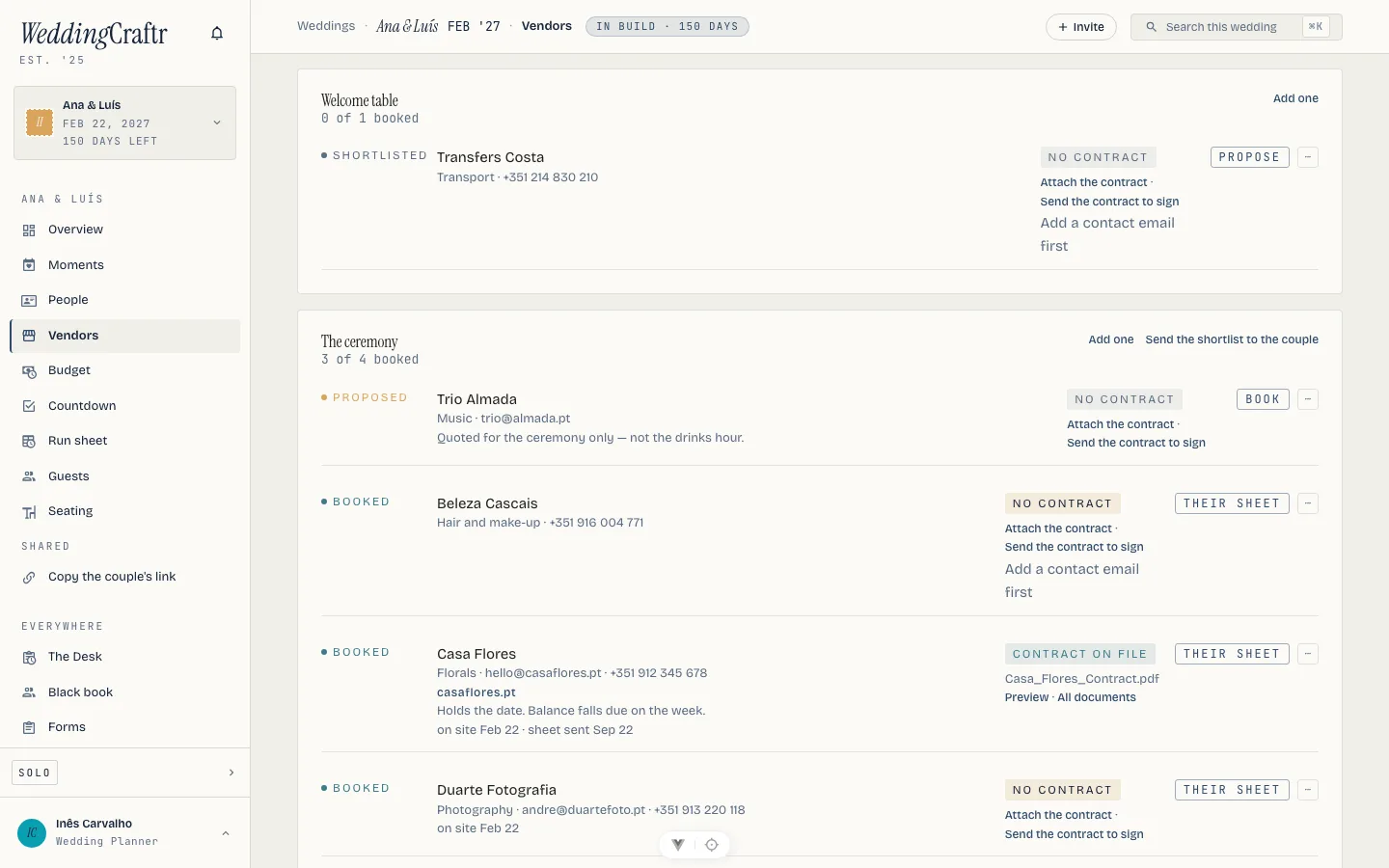
Each booked vendor carries an On site at time: when they arrive, which is earlier than their first line and is the time they ask you for. Left blank, it reads as their first line. The workbook's Vendors sheet has an Arrives at column, so a list you already keep imports with the times on it. The vendor side of this lives in Vendors.
Their sheet, mailed and printed#
Send their sheet mails a booked vendor their own run sheet: their lines, the lines around theirs for an hour and a half either way so they can see where they sit in the day, their arrival, the venue, and the numbers to ring. It goes out as you, your name on the From line and your address on the reply, because a vendor answering a time should reach a person. Vendors never sign in, so the mail carries the sheet itself rather than a link to somewhere they would have to make an account.
It is written in the wedding's language rather than yours, and it can be sent again as often as the day changes; the row says when the last one went. The button appears on a booked vendor who has an email address on file. Sending is yours and your team's: this is the one wedding email that leaves the couple and the planner, so a couple who presses it is turned down rather than sending in your name. Once every booked vendor with an address has one, the countdown's send the run sheet to every vendor ticks itself.
The sheet sent to your venue and your caterer carries the floorplan PDF with it, so the two vendors who need to see the room see it without a separate mail. See Seating.
Print their sheet is the same page as paper, for the crew who would rather have one sheet than an inbox. It is on any booked vendor, address on file or not. The phone sends and prints; the web prints too.
The day, on the phone#
This is the screen the phone is for, so a wedding opens on it in the app. While the weekend is live, from six hours before the first moment to six after the last, three things appear: the next line pinned to the top, a now marker in the list, and a highlight on the row you are in. The pinned line is the next one nobody has done rather than the next on the clock, so once the last time passes it holds whatever is still outstanding.
Tick a line by tapping its box. The tick is shared, not yours: two people checking the same run sheet see one truth, which is the whole point on a day when the coordinator and the couple's sister are both holding a phone.
The wedding's screens work offline the way the rest of the app does, so the venue with no signal is not a problem. Sofia & Nuno's wedding is this week, and that run sheet is the one sitting in its day-of mode on Inês's phone. See The phone app.
Live view#
Not everyone on the day has the app, or wants to sign into anything. Live view, beside a vendor, mints a link that opens straight to a page filtered to that vendor's lines: what they need to know, nothing they don't, refreshed the moment you shift the day because it reads the same run sheet you edit. No account, no sign-in. Party members receive the day texts and can use the same link when the texting service sends it; there is no separate person row for minting a Live View link. The other pages a person without an account meets are in Sharing outside the app.
Send the day texts#
Send the day texts puts those links, and the next line, on people's phones without them opening a browser first. It comes with every planner plan, and it needs the texting service switched on for your account: the operator sets up the provider once, and until then the button explains what is missing instead of pretending to send. See Plans and billing.
Numbers are kept and read in international format, so a vendor's local mobile number needs its country code the one time you enter it.
On the morning of the wedding, the day's first texts go out on their own, one per vendor and one per party member with a number on file. Nobody has to remember to press anything for the day to start on the right foot.