Getting started
WeddingCraftr is one account across the web desk and the phone app. Sign in anywhere and the same weddings, the same couple and the same run sheet are waiting.
The desk#
app.weddingcraftr.com is the desk. Sign in there and you land on the season board, with every wedding you run grouped by where it stands. The screen you signed up on is the account you get: the sign-up there makes a wedding planner, and nothing is promoted afterwards. See The season.
The phone has the same shape: the WeddingCraftr app opens on the season board and begins weddings. Install it, sign in with the same account, and see The phone app for what it adds.
Creating a planner account#
Go to the sign-up page on the web, or tap "go to sign up" on the phone's sign-in screen. You need a display name, an email address and a password. The password field has a strength meter with five bands, and a show/hide toggle so you can see what you typed.
A planner's sign-up asks for one thing more: the country the business is registered in. The choice is fixed when the account is created and cannot be changed later, so pick the one the business runs in.
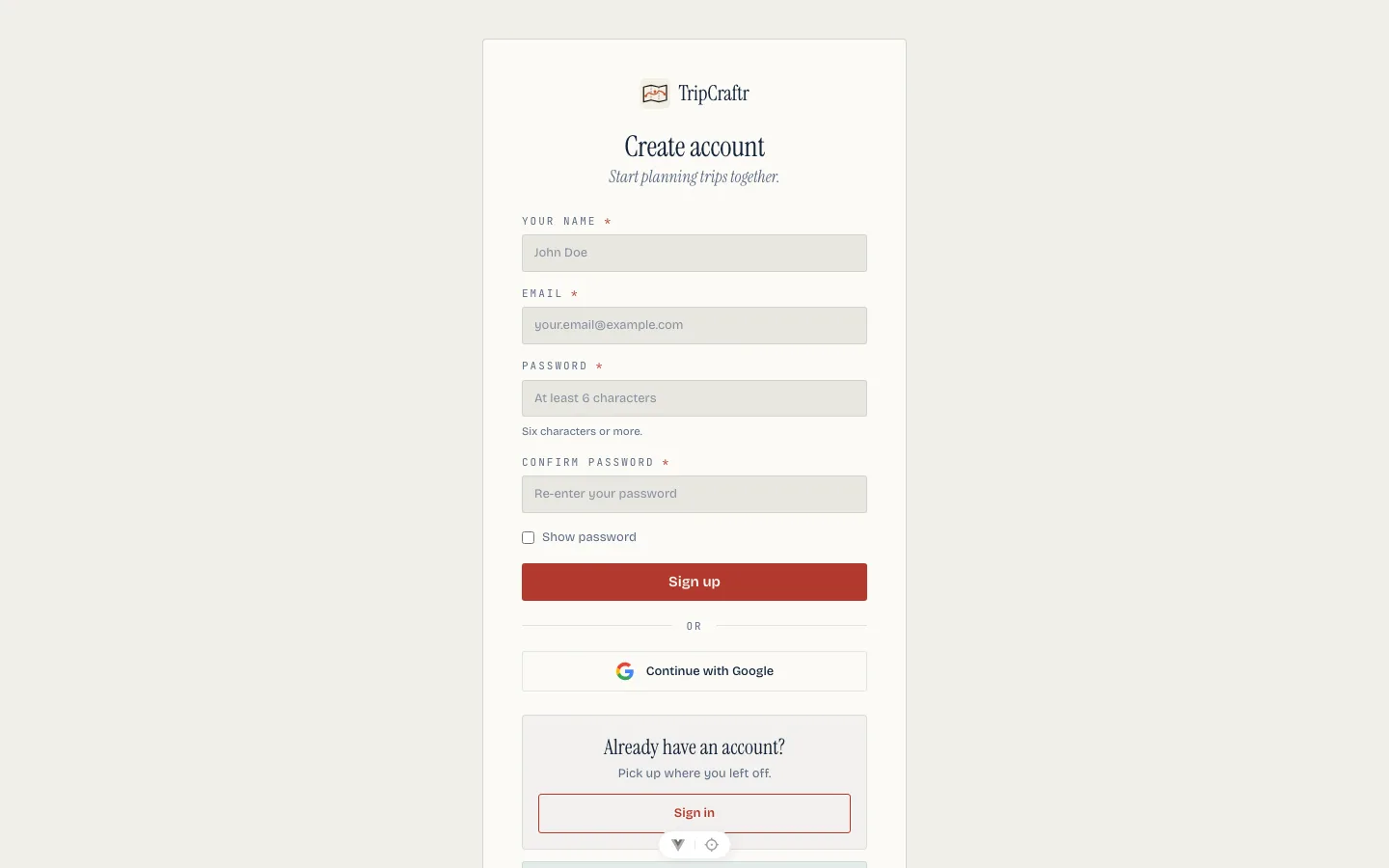
Three ways in:
- Email and password, confirmed by a link sent to your inbox.
- Google, via the "Continue with Google" button, on the web and in the phone app.
- Apple, natively on the iPhone app.
Every new account starts with a 30-day Pro trial. No card is needed and there is nothing to cancel; the trial runs out on its own. A planner account gets a second 30-day trial on top, of the planner subscription itself, and that is what lets you begin your first wedding before paying anything. What happens after is covered in Plans and billing.
The couple's account#
The couple never holds a WeddingCraftr account. There is nothing for them to begin here: a wedding is started by a planner, and a couple reaches it by being invited into one. When you invite each half of the couple by email from the wedding's people screen, the invitation sends them to TripCraftr, the travel app underneath, not to this one. They make an account there if they do not hold one, and the wedding is waiting for them the first time they sign in, already open as their own trip. They approve or decline what you send them, and they never buy anything. See The couple.
The same is true of anyone else you add to a wedding by email: they land on TripCraftr too, and the wedding is there on the first sign-in under the address the invitation went to. A colleague joining your team is the exception, because that invitation arrives inside the app and needs a WeddingCraftr account that already exists. See People and the team.
Signing in#
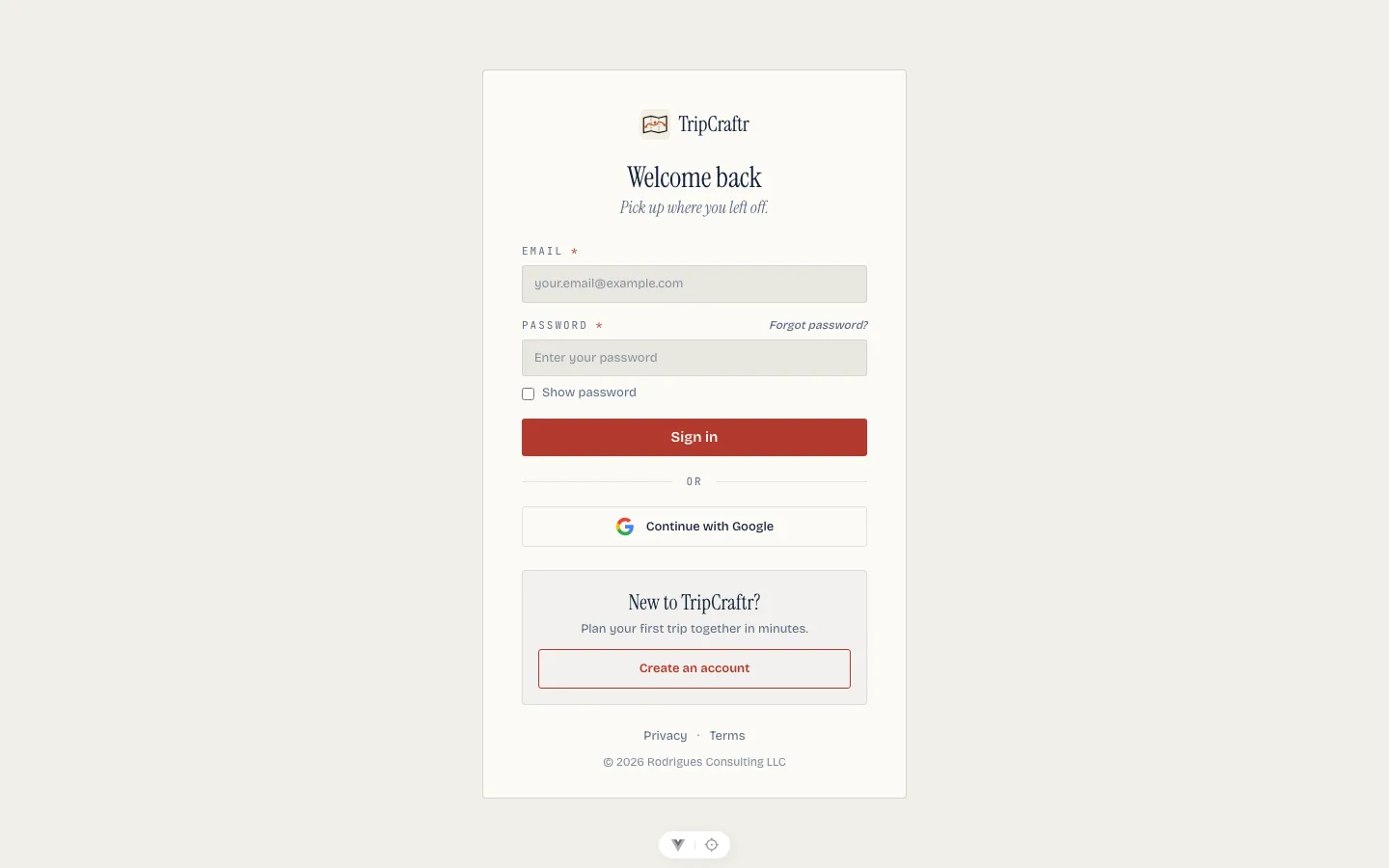
Sessions persist until you sign out. Closing the tab or the app does not end them. Signed-out visits redirect to the sign-in page, and after signing in you land where you were headed.
A wrong password shows "Invalid email or password" inline and leaves you on the page. An unconfirmed email says so, rather than pretending the password was wrong.
Example: Inês signs in#
- Inês opens app.weddingcraftr.com.
- She enters her email and password and presses Sign in.
- She lands on the season board. Sofia & Nuno's wedding sits at the top under on the ground, because the ceremony is this week; Ana & Luís, five months out, sits under in build with the caterer's next instalment flagged as due.
Forgot your password#
On the web, Forgot password? sends a reset email. The link in that mail opens a recovery page, already signed in, where you set the new password twice and save. If the link is not the route you want, Enter code opens the same page with the email and the eight-digit code from the mail. The old password stops working the moment the new one is set.
The phone app sends the same email from its sign-in screen, but enters the code in the app's own reset screen: email, code, new password and confirmation. It does not bounce to the web. The code is good for 15 minutes and survives five wrong guesses; a fifth miss locks it out. The recovery link has its own expiry.
A code that has expired, has no active reset, or has already been used says so in its own words. The new password must be at least six characters, and the confirmation must match. The phone's Resend sends a fresh code; the web's New code link returns to the request page. After a successful reset, the app signs the account in again with the new password.
Signing out#
Web: the sidebar user menu, then Sign out. Phone: Profile, then scroll to Sign out. Signing out on the phone also unregisters the device from push notifications and clears any offline packs it was holding.