Clients, deals and getting paid
A client outlives a wedding. This chapter is the layer that remembers them: the book, where a contact lives between jobs; enquiries, where a deal exists before a wedding does; forms, the questions you send once the relationship has started; the proposal, where a price is put in front of a couple and accepted or declined; the agreement, the template you send and the couple signs online; payments, the link that ends the argument once the work starts; and the invoice, the numbered document behind that payment. Every one of them — the book, the board, forms, proposals, the agreement and the card payment — is on both planner plans, Solo and Studio, and on the planner trial. The two plans differ only in how many colleagues the desk seats. See Plans and billing.
The little black book#
The little black book is one row per contact: a name, not a wedding. Search by name, company, email, home city or tag.
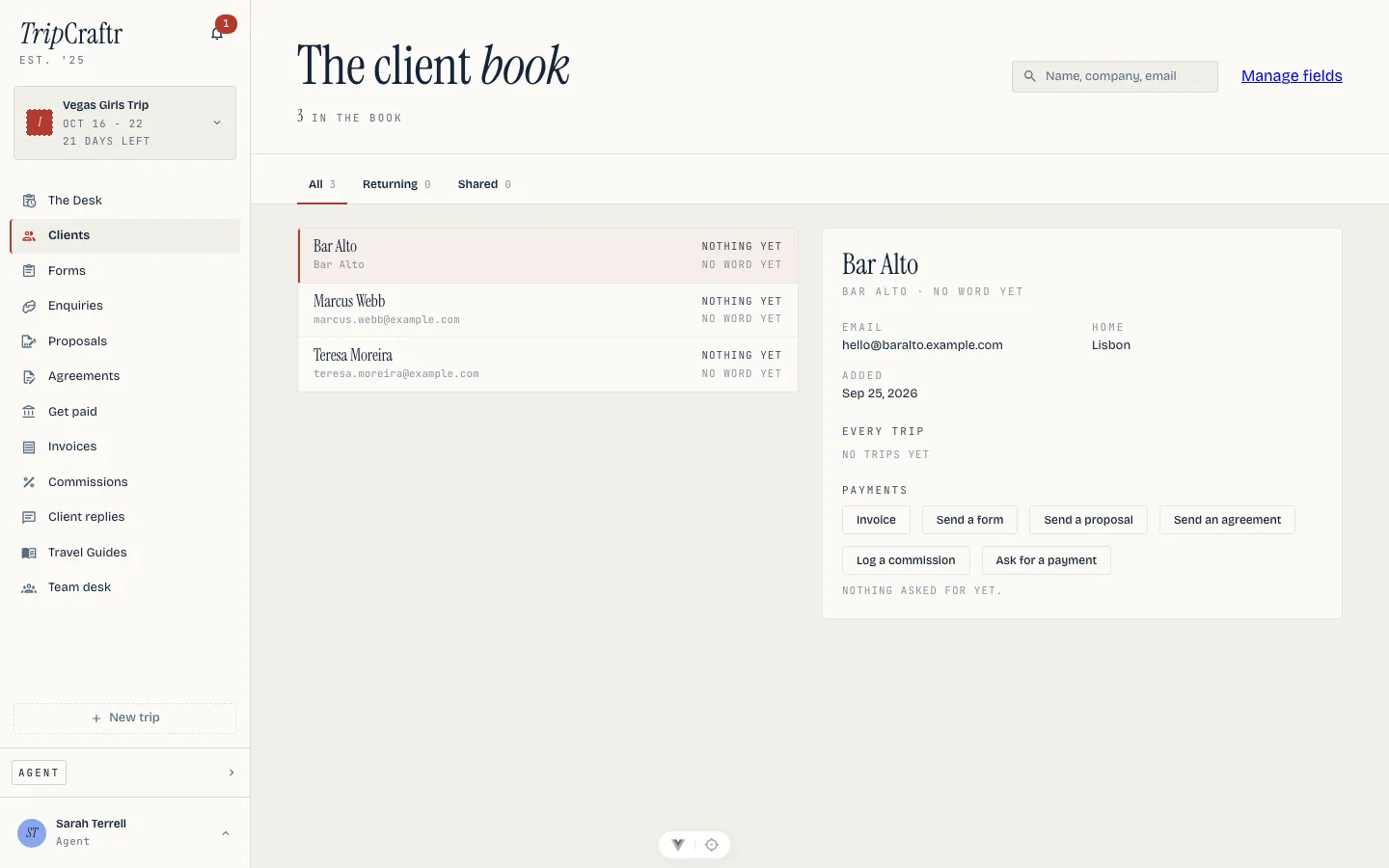
Three tabs filter it. All is everyone. Returning is anyone who has been on more than one wedding, the people worth knowing you already have. Shared is contacts that belong to your team rather than you alone.
Open a contact and the detail pane shows what you would expect (email, phone, home city, preferred language, notes, tags, when they were added) plus two histories: every wedding their people have appeared on, and every wedding they have worked as a vendor. Each links straight through. The subline says when you last heard from them, or that you never have.
A vendor with an email address is filed here as it is typed on the pipeline, the firm as the company and the contact as the person, so Casa Flores is one row with every wedding it worked under it. Nothing about how a wedding's roster or vendors work changes because of it; see Vendors and People and the team.
Your own fields#
A contact or a deal can carry fields of your own as well: a referral partner, a preferred venue, whatever you track. Define them once in Settings → Fields; they then appear on the new-deal sheet and on the contact's panel, filled in by hand and shared with your team. A value is read from the row it sits on, so whoever can see the contact sees the same answer.
Enquiries#
The enquiries board is for the part of the work that has no wedding yet: a lead, a question, a couple who emailed before there was anything to plan.
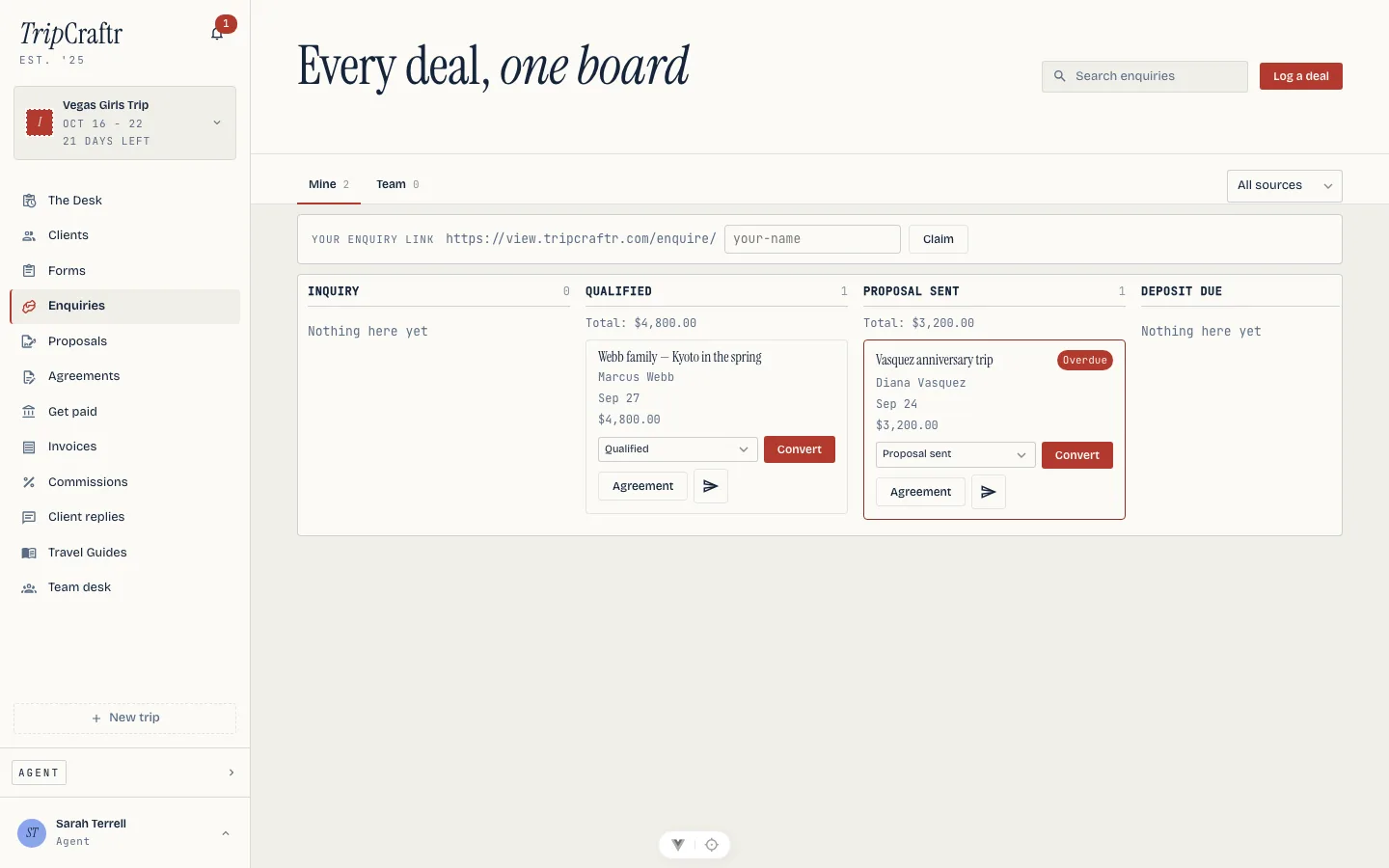
The stages are yours. A board starts with the stages a wedding or a trip moves through — inquiry first, then the middle work, then booked and lost. From Pipeline settings on the board's menu you add, rename and reorder the middle stages, choose which ones the daily follow-up nudge chases, give each a win percentage for reporting, and hand one a workflow so deals dropped into it pick up their follow-ups on their own. The first stage and the two ends cannot be removed. Renaming a stage relabels it without touching the deals on it. Archiving one that still holds deals asks where they should go first, and moves them there rather than losing them.
Your own lists sit under the stages: the sources, event types, services and lost reasons the board offers, each one yours to add to or take from. They are what the filters, the deal sheet and the reason you pick when marking a deal lost read from, so a reason nobody wrote down once is a reason nobody picks twice.
Marking a deal lost asks why. Lost leaves the board until you switch on Show lost; the card then reads its reason, and moving the deal back out clears it. Marking a deal lost, or moving one that was, is a stage change like any other.
Each card carries the contact's name, the event date or the note you wrote when it wasn't a date yet, the guest count, the budget range or value, and the source. A column totals its cards by currency rather than guessing at one, so a board that mixes USD and EUR still tells the truth. Overdue cards, next-action date already past, sort to the top of their column. Filter to Mine or Team, by source or event type, or search by title and contact.
Every deal has an assignee — you, unless a team lead has set a default or you pick someone on the deal. Reassigning tells the new assignee, and the daily follow-up nudge goes to whoever holds it.
Log a deal opens one by hand: a contact from the book or a new one, a title, the event date or a note, guests, a budget range, a value with its currency, the event type, the services, a source and the next-action date. Once it is on the board, Edit details on any card changes the same fields. Export CSV on the board's menu downloads the deals you are looking at, one row each, so a spreadsheet says what the screen says. The intake page below is how deals arrive on their own; this is how they arrive when you are already talking to someone.
Convert turns a deal into a wedding: one click. A deal with no next-action
date yet, or one whose contact name does not already read as two names joined
by &, opens a short dialog first to collect what beginning a wedding needs,
the second partner's name above all, rather than guessing. What it makes is
covered in Beginning a wedding. The follow-ups you
have not finished yet travel with it onto the wedding's checklist.
A lead's own page#
Click a card anywhere but on one of its controls and the deal opens in a drawer over the board, on an address of its own. That address is worth keeping: pasted into a mail to a colleague it opens the same deal, on the web, for whoever is signed in.
Beside the title, once the deal has been scored, sits its priority: hot, warm or cool, with a score out of 100. Open it and Lorenzo names the reasons in words you recognise — the date against your usual booking window, the budget against what you typically close, how well this source converts for you, how recently they wrote back — weighed against your own booked history, nobody else's. A brand-new deal is scored within seconds; an edit to its date, budget, guest count or source rescores it the same way.
One row of quick actions sits under the title, and they are the presses the
card used to carry. Email opens a menu: Write an email for the plain
mailto:, or Draft a reply with Lorenzo, which reads what the couple wrote
and answers it in their language, in a sheet you edit before sending — nothing
goes out until you press Send, and the reply lands in your own mailbox when
they write back. Call opens the contact's phone number when there is one.
Edit details opens the same sheet the card does. Convert and Mark
lost do what they say. Send… opens a proposal, an agreement, a form or the
deposit invoice, each drafted against the deal and prefilled as it was from the
card; a form sent from here belongs to the deal, and appears under Documents.
Overview opens with Next steps: one or two things worth doing now, worked out from the deal's stage, its tasks and what happened to its documents — a reply that never went out, a proposal opened twice with no answer, an agreement waiting on an accepted proposal, a date coming up with nothing confirmed — each with the button that does it. Below that sit the sale's own facts: the stage, who works it, the event date and guest count when you have them, and the next follow-up waiting. Change the stage or the person who works the deal from the same page the board does it from.
Their answers sit under those facts when the deal arrived on a form: every question the couple filled in, each labeled by the question that asked it, including the ones with nowhere else to be filed and so kept only here.
Activity is the deal's own history in order, with who did each thing: the enquiry arriving, every stage move, every proposal sent, accepted or declined, every follow-up added, finished or reassigned, and the conversion when it happens. It is the thread you would otherwise reconstruct from memory.
Tasks are the follow-ups. Add task takes what needs doing, a date, and who works it — the lead's assignee unless you name someone else, which tells them. A tick finishes one; the status beside each row moves it between the five states, open, in progress, blocked, done and cancelled, or deletes it. The tab carries how many are still open.
A follow-up is what the card's next-action date is made of. Adding, finishing or deleting one sets that date from the earliest one still open, so the board and the daily nudge chase the work rather than a number you typed once. Finish the last one and the date clears, and the deal stops being chased.
Documents lists everything the deal has produced — proposals, agreements, invoices and forms — each with its status, an amount where one applies, and how many times the recipient opened it. Every row opens the document's own page.
Apply a workflow, under the task list, drops a list of your usual follow-ups onto the deal in one press, which is what Workflows is for.
On the phone, the board does the work: your own stages, Show lost, editing a deal, marking it lost with a reason, and the board's Export CSV. A deal's own page is opened on the web.
On the phone the same deal is a screen you reach by tapping its card. It has the same tabs (Overview, Activity, Tasks and Documents) and the same quick actions: Email, Call, Add task and Send…, with Edit details, Change stage, Convert and Mark lost under the menu. Tick a follow-up to finish it, or press and hold it to set any of the other statuses. Apply a workflow on the Tasks tab drops a saved set of follow-ups onto the deal, and the board's menu opens Workflows to write or archive them. When a teammate hands you a follow-up, the notification opens that deal.
Workflows#
A workflow is a list of follow-ups you would otherwise type every time, written as offsets rather than dates: reply today, follow up in three days, follow up in seven. Each step says what to do, how many days from what, and who works it — the lead's assignee or you — and steps can be moved up or down. Pipeline settings → Edit workflows creates, edits, duplicates and archives them; the first time you open it there is one waiting for you, the three-step enquiry follow-up, to edit or delete. Applying one copies its steps onto the deal, and editing the workflow afterwards changes nothing already applied. A workflow you apply twice is your choice; nothing stops you.
A stage can carry one instead, set on its row in Pipeline settings as Workflow on entry, and it applies whenever a deal enters that stage: dragged in by hand, moved by Lorenzo, or arrived on your intake page. A deal that goes back to an earlier stage picks it up again, because a deal that returned to Consult booked wants the consult follow-ups again.
Enquiry forms#
Your enquiry page needs no sign-up for the person filling it in. Your enquiry link sits at the top of the board and carries your own name, so nothing that already points at you breaks. It does not exist until you claim a handle there, and claiming one creates your first form.
The questions it asks. Your first form asks for their name, their email, what they are planning, the date (or that they are not sure of it yet), roughly how many guests, and anything else. Each answer is filed as it is given: the name and the email onto the contact, the rest onto the deal's own columns, so the board has the guest count and the date without anyone retyping them. A New form starts from your name, their email and a note. Every form has an address of its own, so you can run more than one and tell them apart by the link you hand out.
What you can change on a form is its name, its address, the thank-you it shows after they send, the automatic reply and the sites allowed to embed it. The reply is written once: it goes out when someone fills the form in, at most once a day to the same address, signed by you, and it can greet them by first name and nothing else they typed. Edit also opens the questions: add your own, choose each one's type, reorder them, and pick where its answer is saved, either one of the deal's own columns or one of your custom fields. Every form keeps one required name and one required email.
Where to put it. Each form has a link and a snippet. The link works on its
own and previews with the form's title when you share it; add ?source=instagram
and the deal's source says Instagram. The snippet puts the form inside a page of
your own, resizing to fit; a form can be limited to the sites you name, and
every other page still refuses to be framed. Make default puts a form on the
bare address, Duplicate copies one you like, and Archive stops its link
without touching the deals it already brought in.
The Knot and WeddingWire. Those services email you a lead rather than posting it somewhere we can read. Give each one the forwarding address from Manage forms → Forwarded mail, or forward the notification from Gmail or Outlook. The lead arrives with the name, date, guest count and message read off the mail, marked with its source. A mail we cannot read a lead out of is kept in the list as Needs a look rather than dropped, with Log as a deal to turn it into one, and a forwarding confirmation from your mail app is kept beside it with the code to confirm with, which also reaches your bell. New address hands you a fresh one and retires the old, which is the move to make if one ever leaks.
Submitting creates a contact if the email is new, opens a deal at the inquiry stage, and mails you.
Reports#
Reports sits at the top of the board. Pick a period (this month, last month, this quarter, the last 90 days, this year or last year) and, on a team, narrow it to your own deals or the whole team's.
Every section says which kind of number it is. Created in this period counts the leads that arrived; happened in this period counts what they did, won or lost, however old the lead; as of today is a snapshot that does not move when you change the period.
- Summary: how many leads, how many booked, the win rate, the median days to book and the money.
- Where leads come from: by source, with what each one converted.
- How far they get: the funnel, stage by stage, so you can see where leads stop.
- Why they're lost: the reasons, most common first.
- Time to book: the median, the middle half of your bookings around it and how many were booked, because a median on its own hides the spread.
- Money: five numbers, and it is worth knowing which is which. Booked and invoiced happened in the period, and collected is what has been paid on the invoices issued in it. Pending is what your unanswered proposals are still asking for, and projected is the open deals weighted by how likely each one is to close, so it is a number to steer by rather than to bank on. All of them are per currency and never added together, and open deals with no value yet are counted in a line of their own instead of being dropped.
- By month: created, won and lost, side by side.
- Breakdowns: by event type, by service, by who owns the lead, or by one of your own picklist fields.
The win rate is won over decided, with won over all leads beside it, so a month of fresh enquiries still open does not read as a collapse. Every section downloads as a CSV, and Export leads downloads the cohort. On the phone, open Reports from the board's menu; each section has a share button that sends its CSV to Files, Mail or any app you choose.
Forms#
A form is a set of questions you wrote, sent to one contact as a link, answered on a page that wears your name. The intake page asks what someone is planning before the work starts; a form asks whatever you need once it has: dietary needs and song requests before the day, how it went after.
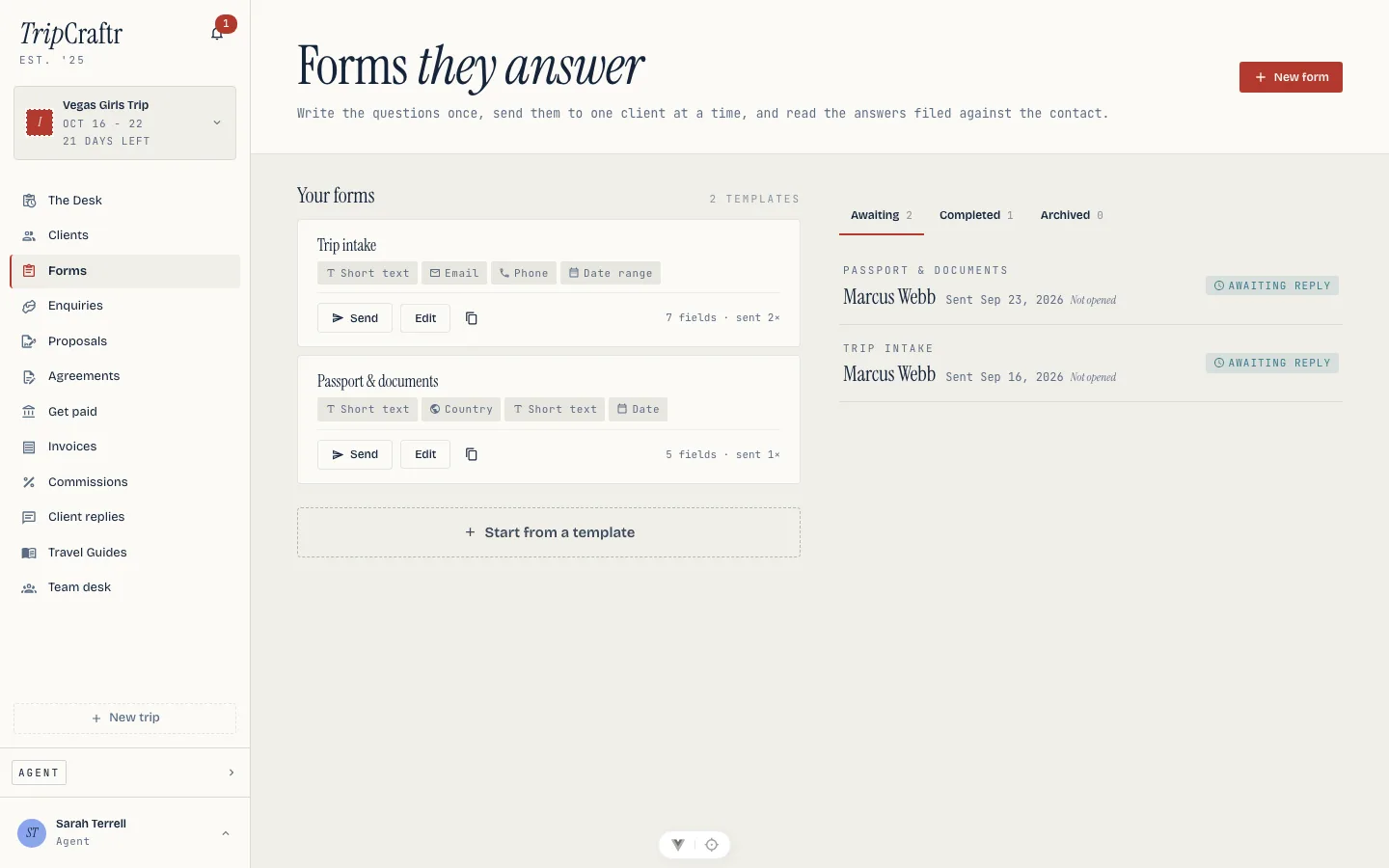
Building a form starts from a gallery: four starters (intake, passport, dietary, feedback) plus a blank form. It gets a title and a description, then the field types in four groups. Text: short text, long text, a section heading with no answer of its own. Contact: email, phone, address, country. Numbers and dates: number, amount, date, date range. Choice: choose one, choose many, yes or no. Files and signing: file upload up to 10 MB as an image or a PDF, typed signature. Each field carries a label, an optional help line, and whether it is required.
Split it into pages. A page is a heading that starts a new screen, and the client takes one page at a time rather than one long scroll. The pages rail runs down the left of the builder; you can add a page, rename it, move it, or delete one — deleting a page moves its questions onto the page before it rather than losing them, because deleting a heading should not silently delete the answers under it. The builder and the preview follow the same page, so a form with a branch in it is legible while you are building it.
Add content between questions. A content block is an explanation, not a question: a paragraph about why you are asking, a photo of the venue, a list. It carries no answer, so it is never required and never appears in a survey's results. Content in the palette adds one, edited with the same rich editor you use for proposals and agreements.
Show a question only when it applies. Any question, section, page or content block can carry a Show only if… rule. You name an earlier question, an operator and a value: Ceremony abroad? is yes, Guest count is more than 50, Music is Fado. Two or more rules combine as All or Any. A rule only ever looks backwards, and never into a repeating section, because a repeating section answers once per traveller and has no single value to compare.
Every reason a form cannot be saved is listed at once, each one a link to the question it is about, rather than one error at a time. The rules are: a rule that looks at a question below it, a rule that looks inside a repeating section, a rule that looks at a question you have since deleted, a page inside a repeating section, and more than fifty pages.
A section can repeat. The client can add one group per traveller, guest or family member, and each group keeps its own answers. The request reads as one block per repeated group, and the completed PDF keeps those blocks separate rather than flattening them into one answer.
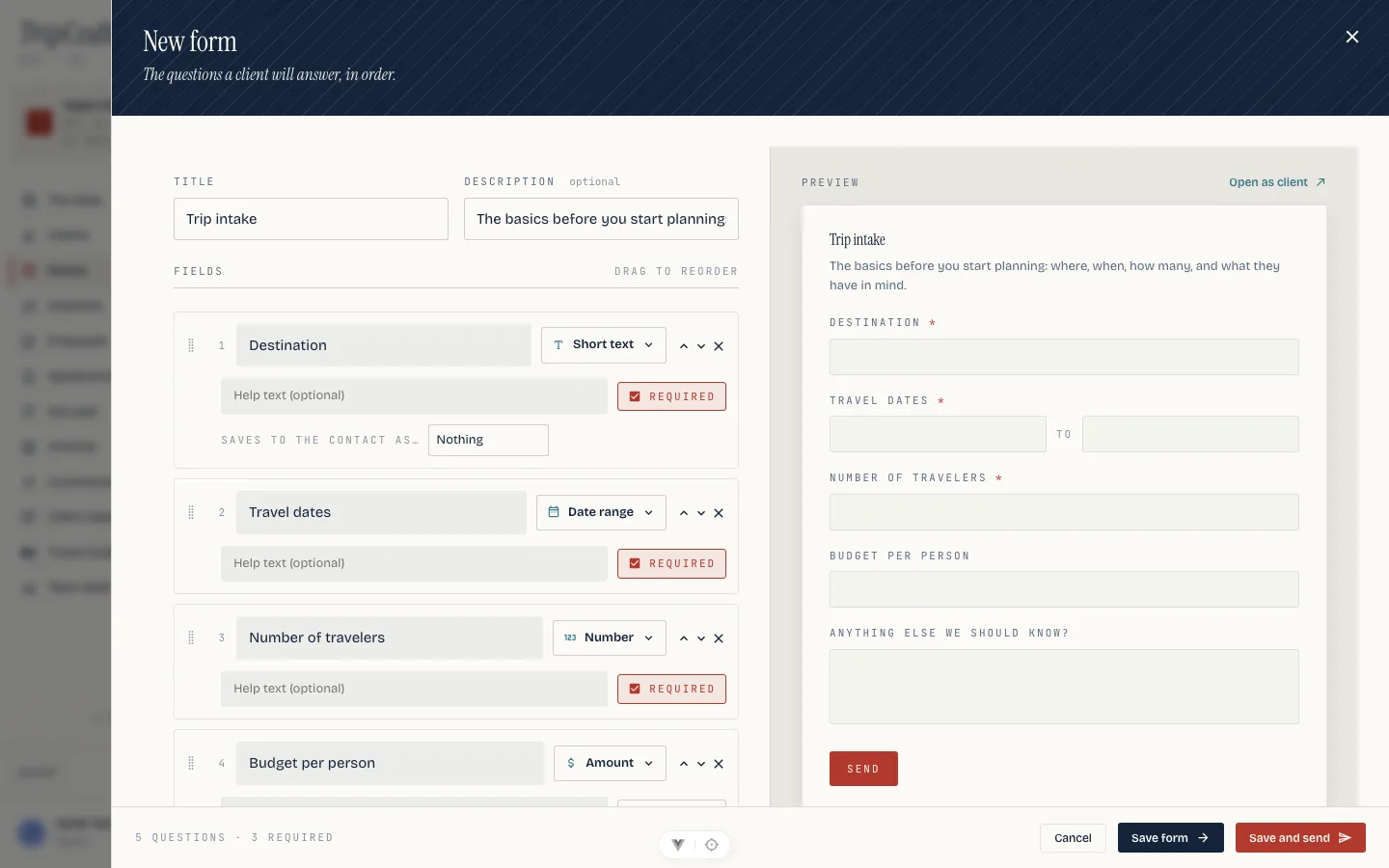
Some fields can carry "Saves to the contact as…": phone, date of birth, passport number, nationality, dietary, email or address. It does not write anything by itself: on a completed request, an Apply to contact press copies that one answer onto the matching field on the contact's book entry.
Send it from the forms page, picking a template and a contact from the book, or from Send a form on a client's card, or on a deal's card in the enquiry board (web and phone). Add a note and it rides along in the mail. The recipient gets one mail with the link, from you. Or just tell Lorenzo: "send Ana the dietary form" sends it straight away, no draft to review first.
Pre-fill what you already know. Before sending, answer anything you can: the send sheet's Pre-fill step draws the form itself, and Fill from contact copies the contact's own details into the questions that map to them. Beside any answer you give there is Lock this answer, which shows it to the client filled in and stops them changing it. A client who sees their own name typed in knows the form is about them.
Set a closing date. Closes on means the form stops accepting answers at the end of that day. Reminders stop then, and the client gets a note three days before so the date is not a surprise. A template can carry a default — Close after 21 days in the builder — and each send can move it or clear it. Close now is that date in the past: the form turns read-only, whatever they saved stays readable, and you are told it closed unanswered.
The client sees one page at a time, with a "page 2 of 4" line, and their answers are kept as they go. They can stop and come back and find their work exactly where they left it, and the page they never opened is never shown to them. Saving works without any scripts at all: every button is an ordinary submit, so the form behaves the same for a client who has them turned off.
The couple can also fill it in their own trip, on the web and on the phone, under Your planner asked. It is the same form and the same answers as the mailed link — one request, not two that happen to look alike.
Reading answers happens on the request, grouped by the page the client saw, each one labeled by the question it answered even if you have since changed the template. A question their own answers hid is marked rather than dropped, so you can see it existed. Download as PDF files the whole set and says so if it was corrected since they sent it; Copy link and Archive sit beside it, and archiving closes that link without touching the template. Duplicate on a template starts a new one from its fields.
The board splits into Awaiting, In progress, Completed and Archived, because a form somebody has started is a different thing to act on from one they have not opened. Each row says how far through they are, which page they are on, and whether it closes this week.
Edit answers corrects something a client sent — a guest count they mis-dialled. Every question is editable, including one you locked, since correcting your own pre-fill is exactly what you are there to do. The change needs a note, and the History keeps what it replaced, with who and when. The answers PDF records the correction too, rather than looking identical to one the client sent untouched.
Reopen for the client sends a finished form back. They come back to the answers they already gave and change what they need, so they edit rather than retype, and what they sent first stays in the history. A note you write rides out in their mail.
Surveys are a form published as a page anyone can answer, with no recipient and no contact. Publish a survey on the survey's tab picks a template, asks whether to ask for a name and an email or nothing at all, and can set a closing date and a response limit. You get a link to share however you like, and a results page with per-question counts and a CSV.
A survey cannot ask for a file or a signature. A public page that accepted those would be an abuse surface with nobody to report it to, so a template carrying either is refused rather than quietly published without that question. A survey with a limit closes itself when it reaches it.
On the phone, forms has no builder — that stays on the web, and the phone links to it — but the phone sends, pre-fills, sets a closing date, reads answers as they arrive, edits a submitted answer, reopens one, and follows surveys. Apply to contact is a web action; the phone reads the answer without writing it onto the book entry.
The proposal#
A proposal is the document where a price is put in front of a couple and accepted, not just billed, and its price is a quote: sections you group the work into, each with its own rule.
- An included section bills every line in it.
- A pick one section is a tier — the couple chooses exactly one, or none if you leave the section optional.
- An add-on section is a list of extras the couple ticks, with an optional minimum and maximum.
A line can be marked default, pre-ticked for the couple and priced into the "from" figure you see. On top of the lines you can add a discount, scoped to the whole quote or to one section, and a service charge, always whole-quote; each is a percentage or a fixed amount and carries its own tax. Tax stays per line. A notes block sits under the totals — what is included, what is not, what you expect for payment. And a validity date, past which the price is no longer standing.
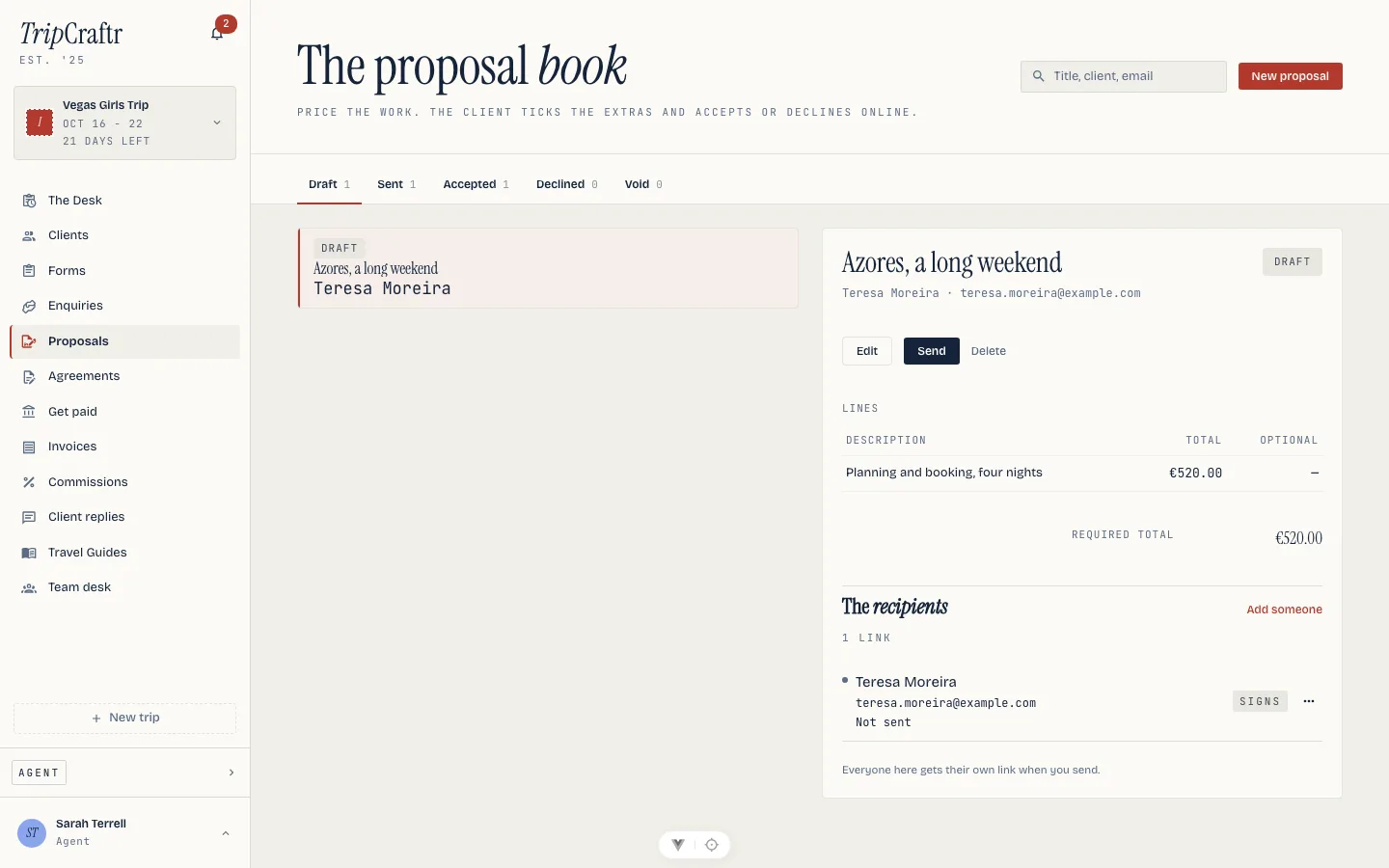
Send a proposal from an enquiry's card (prefilled with the deal's value as one line), from a client's card, or from the proposals page itself. Build the sections, their lines, the discounts and charges, the notes, how long the price holds, and, if you want them ready the moment the couple says yes, a deposit amount and an agreement template to send alongside. A proposal with no pages around it is a quote: the price is the whole document. You can also start one from a template, a saved quote with the same structure. Sending freezes the document as it stands. No number is issued and nothing is charged.
What the couple sees is a page in your name: each section, the tiers as cards to choose from and the add-ons as boxes to tick, the totals moving as they choose, the notes, then Update the total, Accept and Decline. Accepting asks for a typed name and an email; declining an optional note. Either one is final. Opening the link again after a decision shows the outcome, not the form. Past the validity date the page says so and offers neither button.
Record approval is for the client who says yes on the phone. It opens the same choices the couple sees, asks for their name and a required note saying how they confirmed it ("Approved by phone, 14 Oct"), and records the approval in their name. Every signer on the proposal is emailed what was recorded, so the client can check the record against how they actually confirmed it.
From quote to invoice. Once a quote is accepted, Create invoice turns it into a draft invoice carrying exactly the choices and the arithmetic the couple approved — the tiers, the add-ons, the discount as its own line. A deposit, when you set one, becomes its own draft. Issuing the number stays your press.
Accepting is a signature-shaped act. The typed name, the email, the IP address, the browser, the timestamp and a hash of the frozen document, the way signing an agreement works. The row locks with the chosen options and the total they add up to. What follows is prepared, not automatic. If the proposal named an agreement template, an agreement is drafted against the same contact in the same step, waiting on the client's card. If it named a deposit, an invoice draft for that amount appears on the invoices page, waiting on yours. A number is only ever issued by your own press.
Accepting moves the deal. Sending a proposal linked to an enquiry moves it to proposal sent; acceptance moves it to the stage after that. A decline leaves the card where it is and logs the note on its thread.
A price that runs out says so. Three days before the validity date, the people who can accept it get one mail saying the proposal is still open, and your bell tells you the title expires soon. On the day the date passes, the proposal turns Expired, the couple's page stops offering a decision, and the bell tells you it went. An expired proposal sits in the Void column and reads Expired there, so it is never mistaken for one you closed yourself. The couple's page has said all of this since the first send; the mail and the two bell entries are the part that needs you.
The detail view shows the priced document with the chosen lines marked, the totals, the outcome, the recorded-by line when you recorded it, and whichever of Record approval, Create invoice, Send the agreement and Download apply. On the phone, open a quote to see its sections, record an approval in the client's name, and create the invoice; share the link or download the PDF from there too.
One link to book you#
A booking is a proposal that also asks for a signature and a first payment. The couple gets one link and does three things on it, in this order: read the quote and approve it, sign the contract, pay the deposit. Nothing is sent separately, because nothing is separate.
Turning it on is two switches in the proposal editor, under Booking. One per step, so you can ask for a signature without asking for money, or the other way round. Ask for a signature picks a contract template and how many days they have to sign; Ask for payment picks how the money is asked for — all at once, a deposit then the balance, or in equal instalments. The panel lists what is still missing, each with the button that fixes it, and Send stays disabled while anything is outstanding. A brochure is pages to read, so it never carries a booking.
The contract's own numbers come from the quote they approved. A contract template can hold a block that reads the services and another that reads the payment schedule; both are filled from the proposal the moment the contract goes out, and the version the client signs is the version that was resolved. A proposal you edit afterwards does not change a contract already sent.
A booking can come from a template or from Lorenzo, and either way it is the same booking: a template that carries a contract and a schedule makes every proposal built from it one, and Lorenzo can draft one in a sentence — "draft the quote for the Silvas with a 30/70 schedule and the standard contract" is the whole request. Neither sends anything; you read it and press Send yourself.
What the couple sees#
One page with the three steps across the top, the switched-on ones only, and whichever step they are being asked for below it. A step that has not opened yet says so rather than showing a form that would be refused. If they are waiting on somebody else to sign, the page names who.
The three steps are the only things in the booking, so the couple never gets a second mail about it: the contract and the invoice are reached through the same link. Receipts, reminders and the signed copy are unchanged — those still go out on their own, because they are about the booking rather than a step of it.
Where it is#
The proposal's detail shows the three steps with who did what and when, links to the contract and the invoice, and the Booked line once everything is done. The proposals list shows the stage in the row, so you can see Signing or Paying while scrolling.
When something is stuck#
Sometimes a step cannot move — a billing profile is missing, payments are not connected yet, the schedule does not add up. The booking records the reason and the client sees only that it is being prepared, never an error. You see the reason on the detail with a Retry button, which runs the same step the couple's own acceptance would have. Fixing the cause and pressing Retry is the whole recovery; nothing is re-sent to a couple who has already signed.
Voiding one#
Void booking takes the quote, the contract and the invoice together, and is offered while nobody has signed and nobody has paid. After a signature or a payment it is refused, and the refusal says why: those are not yours to take back. Void the contract and the invoice separately if that is what you need — they say the same thing.
What the client hears about money#
Once you turn reminders on in Billing details, the client is chased on your own lane, in your name and in their language. Before it was one mail you sent by hand; now an instalment produces its own mail at the offsets you chose.
Reminders name the instalment, the amount and the date, and carry a stop reminders link for that invoice. A client who presses it is never mailed about that invoice again and you are told they did. Receipts go out for every payment by any route — a card, a transfer, cash you recorded, a refund — with a printable page behind them. A thank-you follows the morning after an invoice is settled. An invoice you paid nothing on yet produces nothing at all: an unsent invoice, a paid instalment, a paused invoice or a business with reminders off are all skipped.
Every one of these is a separate send, and the offsets and the hour are the business's rather than the invoice's, because a client holds no account and we do not ask them for a timezone. An invoice can only be paused, never given its own schedule. The invoice's detail lists what went out, to whom and when, and the record-payment form has Email a receipt ticked by default for the planner who has already chased by hand.
The agreement#
An agreement starts from one of your own templates, as many as you want, each with its own title, so a destination-wedding contract and a day-of coordination contract sit side by side without overwriting one another. Write each in your own words, with real formatting: headings, bold and italic, links, numbered clauses with sub-clauses, bulleted and check lists, tables, images and page breaks. WeddingCraftr supplies no clauses of its own, and the template screen says so. A template you no longer send is archived, not deleted, so past agreements still show where they came from.
Insert merge fields by name from the picker — the client's name and email, the couple's names, the project and event details, the scope and fee, your own name and address — and they fill from the deal, the trip and your billing profile when you draft. Insert client fields where the couple has to answer something before signing: a text box, a date, a number, initials, a longer answer, a checkbox, a choice, an email, a phone number or an address. Mark one required and the signing page refuses the signature until it is filled. A template whose rich document cannot be read by an older build still saves, and the plain-text version of any document is what search, Lorenzo and the reports read.
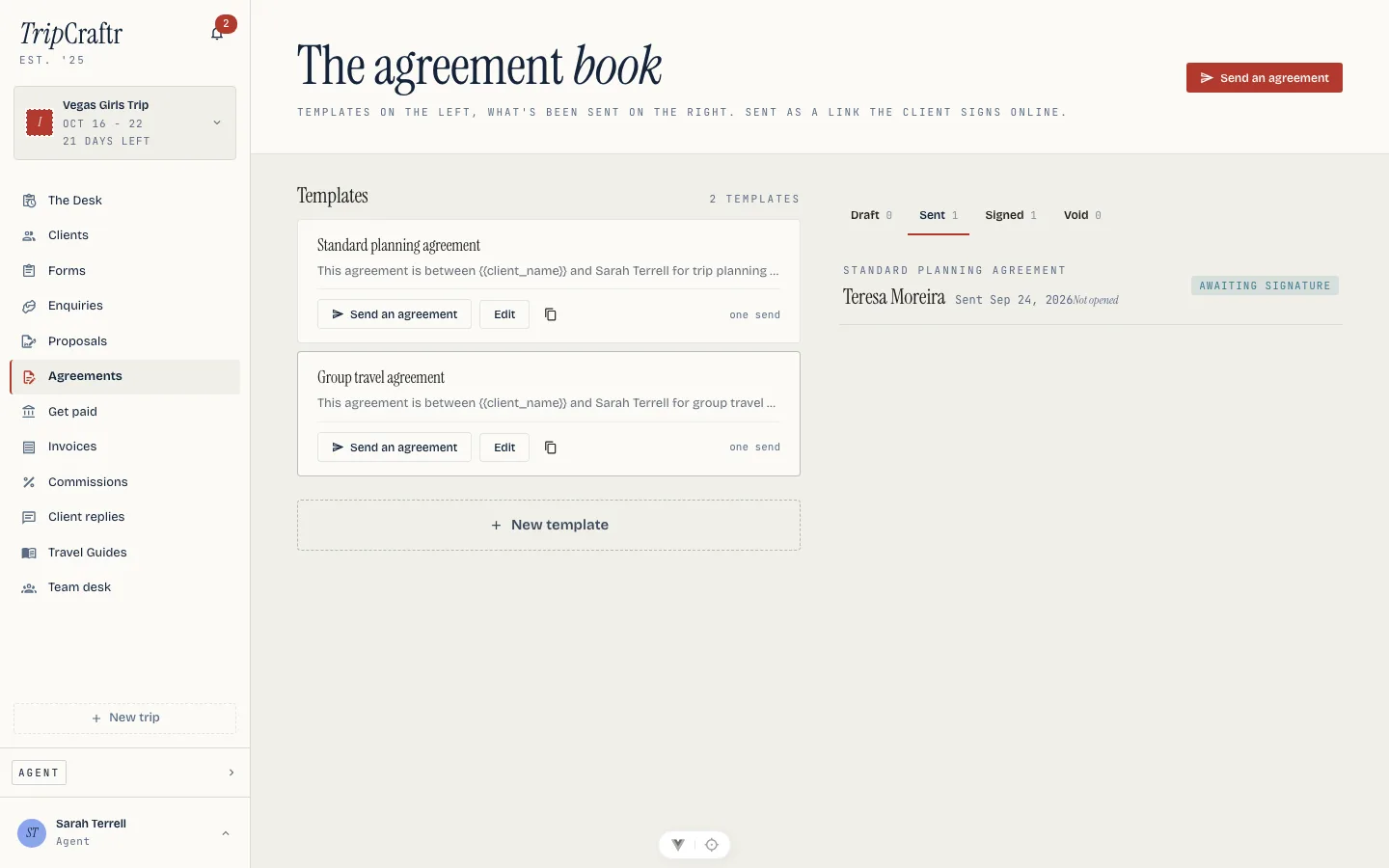
Send an agreement from a client's card, a deal, a proposal that named the template at send, or from the agreements page itself, picking a template and a contact. Each drafts the body and shows it to you before anything goes out; confirming sends it, and the couple gets a mail with a link to a signing page, no account needed on their side. An agreement does not need an enquiry behind it: it can follow a bare contact just as well. Vendor contracts share the same book: a contract sent from a vendor's row is drafted from one of these templates and sits under Sent and Signed beside the couple's.
The agreements page is the board: templates on the left, what has been sent on the right, under Draft · Live · Signed · Void. Live is a contract somebody is being asked to sign, which is where a wedding spends most of its signing window; a contract nobody finished and whose date has passed is on Void with its signatures still standing. The detail drawer shows the body, the attached files, who signs and in what order, the signers' audit trail once signed, the countersigned PDF, and Copy link, Resend, Take back for editing, Expiry, Add an addendum and Void. Resend mails the same signing link again, for a couple who lost the first one; void closes it without a signature.
Attached files are the terms, the floor plan or the insurance certificate that belong to the contract rather than being mentioned in it. A PDF is bound into the signed document page by page and an image becomes a page of its own. Each file is hashed when the contract is sent, and the digests are on the audit page, so "the terms were attached" is something the signed document can prove rather than something anyone has to take on trust. Three types, twenty megabytes, and the list is fixed once the contract is sent — an exhibit added after a couple signed is an exhibit they did not sign.
Signing#
The couple opens the link, types their name (and optionally their email), and signs. If the agreement asks them for anything first — a date, an address, their initials, a choice you set — the page collects it above the signature and keeps it with the signed document, so what you filed is what they answered. What is recorded is a simple electronic signature: the typed name, an intent statement, and an audit trail of the time, IP address and browser that signed it. The agreement as signed is locked at that moment. A later edit to your template cannot change what was agreed. A copy goes to both of you. It is a standard electronic signature, not a notarized or qualified one, and WeddingCraftr does not represent it as one. Read your own template with your own lawyer before you rely on it for anything that needs more.
Several people, in an order. Every recipient marked sign signs, and the detail drawer says who and in what order. People sharing an order sign in any order among themselves; a lower order signs first. A couple who are waiting on somebody else are told who on their own page, in place of a form that would be refused — a second partner signing first is not a contract anyone agreed to.
Your firm signs too. Add a colleague to the contract's signers and they get a notification when it is their turn, then sign from the agreement on the web or the phone. It is a signature and not a button: the database refuses anyone who is not a pending signer on that agreement.
Initials on a clause. Inside a clause, Require initials puts a box at the end of its number for each client to initial. Every client signer gives their own, and a page shows what the others have already put there by clause name. A firm signature fills nothing, so a colleague is never asked for a client's initials.
What the client filled in. A client-details block on the contract fills the contact columns that were empty — a phone, an address, a passport number — and lists the ones that already held something different, on the contract, for you to apply with one press. Nothing is overwritten silently: only you know whether their answer is the newer truth.
Once signed, an agreement is frozen: the only moves left are voiding it, filing the countersigned PDF, or adding an addendum. Add an addendum opens a contract of its own against a signed one, with the same people signing in the same order, and reads "Addendum 2 to …". Take back for editing returns a sent contract nobody has signed to draft, and the button is gone the moment one signature exists. Expiry ends a contract nobody finished without pretending it never happened: the signatures already given stay on the record, and the contract can never be signed once its date has passed. If the deal is attached to a wedding, the countersigned PDF lands in the wedding's wallet on its own.
On the phone, an agreement is the same shape as on the web: read the body and the signers' audit, send from a template, share the link, sign for the firm, take a contract back for editing, set or end its expiry, add an addendum, or void it. Template bodies stay editable on the phone.
Agreements are on every planner plan, Solo, Studio and the trial alike.
Recipients and who opened what#
Every proposal, agreement, invoice and form request has its own recipients: the panel on its page lists who can open it and what each link has done.
The person it is addressed to is the first recipient. Add someone else with Add someone: pick them from your clients or type a name and email, and say whether they sign or view. A signer can accept, sign, fill in or pay; a viewer gets the same document with the action replaced by a line naming who it is waiting on. You can also add people in the send sheet of an agreement or a form, before anything goes out. When you send, each recipient gets a link of their own, so the same proposal can go to two people and you can see which of them looked. Ten people at most on one document.
Each row carries a line: Not sent, Not opened · Sent 12 Sep, Opened 13 Sep · 4 visits (visits are separate openings more than half an hour apart — a reload does not count), Email opened, or Email bounced. Copy link copies it; preview opens it as a client would, without being counted and without being able to act. Adding someone after sending offers Send them the link, and Send again repeats it to one person. Signs / Views changes what a person can do.
Turn off link stops a link for good — including the original one the document was first sent to — and a turned-off link shows only the ordinary not-found page. To bring someone back, add them again for a fresh link.
Getting paid#
Connecting your own Stripe account is done from the payments page, and is on every planner plan — Solo, Studio and the trial. It is your dashboard after that: your disputes, your payouts, your funds. WeddingCraftr creates the charge on your behalf and takes no cut and holds no money at any point; the connected account itself is on the hook for Stripe's fees and any losses, which is why the account has to be yours. That means creating your own Stripe account, including its own two-step authentication, on Stripe's own screens, before the first charge. Onboarding is a link out to Stripe and back; until charges are enabled on the account, your couple's pay page says you are not accepting payments yet instead of offering a button.
Disconnect from the same page. It removes the account from WeddingCraftr, not from Stripe. Nothing you have already been paid moves. Your clients stop seeing a card option; a bank transfer, cash or check you record yourself still works on any invoice or request. Reconnecting later sets up a new Stripe account rather than picking the old one back up, so this is not something to toggle back and forth.
Requesting a payment is a press, never automatic. The press lives on the wedding's budget: open the milestone and press Request payment, and it is priced at exactly what that milestone is owed right now, including a per-head line's live count, and carries the milestone's own due date. The link is copied to your clipboard so you can send it wherever you reach this couple. The same press exists on a client's own card in the book, behind Ask for a payment: type an amount and a reason, no milestone required.
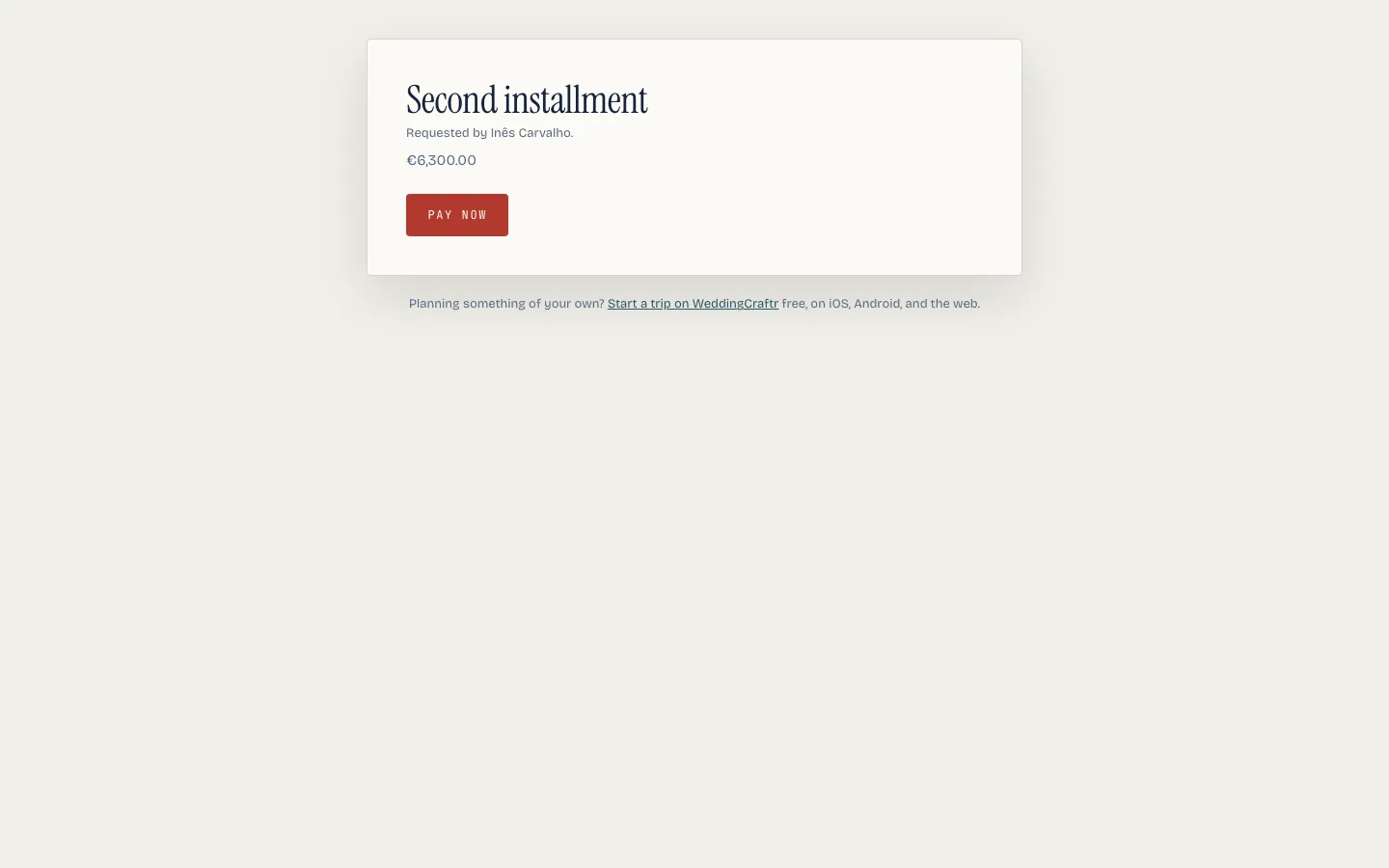
The couple's own pay page asks for no account. The link is the whole authorization. It shows what the payment is for in the milestone's own words ("the caterer's second instalment," not the caterer's name), who it is from, the amount, the due date, and a way to pay. WeddingCraftr never sees the card and never touches the money in between.
It lands in the ledger like any other payment. The budget's paid and left move the moment the couple pays, the same as a payment you record by hand. See The budget.
Reminders chase you, never the payer. A request with a due date that is still unpaid mails the owner who raised it a week out, a day out, and once when it is overdue, riding the same daily digest the enquiries follow-up runs on. The payer gets nothing: a link holder has no account and no preference to set.
Invoices#
A payment request says what a couple owes and gives them a link. An invoice is the document behind it: numbered, dated, itemized, taxed, addressed from your business to a client, payable by card or by bank transfer, and still true after it is paid. It is what a couple's paying parent asks for.
The billing profile is the issuer block. Legal name, address, country, tax id and what the tax line is called (VAT, GST, sales tax), payment terms in days, the number prefix and the next number, bank details, a payment link, and default notes and terms. This is what a client reads at the top of every invoice you send; the product's name appears only in the footer. On a team it is the team's block: one legal identity, one numbered book, one set of bank details across every planner on it. The team lead edits it, everyone else reads it. The next number is yours to set until the first invoice takes one; after that the sequence runs on its own and is never reused.
Invoices is the book. One row per invoice (number, client, due date, total, status) under Draft · Open · Overdue · Paid · Void, with what is outstanding and what is late totaled per currency, never blended. New invoice opens the editor: bill-to from the book (or someone new, typed inline), an optional wedding, the currency, lines with a quantity, a unit price and a per-line tax rate that you can add, remove and reorder, notes, terms, a due date, and a live total. Save draft keeps it editable; a draft has no number.
Issue takes the next number and freezes the document. Totals, the issuer block and the bill-to block are written onto the invoice as they stood at that moment, so a later edit to your billing details or to the contact cannot change what a client was sent. Issue refuses, in plain words, an invoice with no lines, a client with no email, or an issuer block with no legal name.
A payment schedule splits the total into instalments instead of one due date: a deposit, a retainer, a final balance, or as many as you need, each priced as a fixed amount, a percentage or an even split of what is left, and due on issue, a number of days after issue, a number of days before or after the wedding's own date, or a date you pick. Once issued each row shows its own standing — paid, partly paid, due, overdue, upcoming or void — read straight off what has been recorded against it. If you move the wedding's date afterwards, every instalment due relative to it moves with it, and the invoice says so with a banner naming the shift. A private note sits beside the public notes and terms, for what you want on file and never on the document the client opens.
A recurring invoice reissues itself: turn recurrence on from an issued invoice's own page, pick weekly, monthly, quarterly or yearly, how many times or open-ended, and whether each run should sit as a draft, issue itself, or issue and send. Pause it when the work pauses and resume later; end it and it stops for good. Each run copies the source's lines and schedule fresh, so a change to your prices only lands going forward.
Templates save a shape you bill often — the lines, the schedule, the notes and terms — under a name, shared with your team or kept to yourself. New invoice from template starts the editor already filled in, and Save as template on any invoice does the reverse. Archive a template you no longer use rather than deleting it, so it stays off the picker without touching invoices already made from it.
The payment link is whatever door you already have. If you take money through Wise, Revolut, PayPal, Payoneer or anything else that gives you a link, paste it into your billing details and it becomes a Pay online button on every invoice you send, beside the card button or alone when there is none. The money goes straight to you, and nothing tells us when it arrives, so a payment made that way is one you record yourself, the same as a transfer. For an international invoice this is usually the cheaper door, and cheaper still if the link or the bank details you print are in the currency you billed in.
The press points. A client's card has Invoice beside Ask for a payment; a booked deal on the enquiries board has Invoice the deposit, one line from the deal's value; a budget milestone has Invoice this beside Request payment, one line priced at what is owed right now including a per-head line's live count. Each opens the editor pre-filled.
After issue: Send, Copy link, Download PDF, Record a payment, Void. Send mails the client once (in their own language, from your name, the PDF attached) and nothing automatic follows it. The link opens a public page where the client reads the document, the balance, your bank details and your payment link, and pays by card when your connected Stripe account allows it; a card payment lands on the invoice by itself. A bank transfer, a payment link, cash or a check you record yourself: amount, method, date, note. The invoice reads Paid the moment the balance reaches zero; a payment recorded by mistake is reversed with a negative one, never edited away. Void keeps the number and marks the row void; a correction is a new invoice, and there are no credit notes.
Reminders chase you, and the client, once you say so. An open invoice mails you a week before it is due, a day before, and once when it is overdue, on the same daily digest the payment requests use. The client is chased separately, and only if you turn it on: under the billing details, Client mail switches the whole thing off or on, picks how many days before a due date to write and how many days after, decides whether the day itself gets a note, and sets the hour of the morning. Those are your hours, not the client's — a client holds no account and we do not ask them for a timezone, and an invoice can only be paused, never given its own schedule. A client who has had enough has a link in every one of those mails that stops it, with no account and no explanation needed; the same switch is on the invoice, and you can turn it off yourself before they write.
Other ways clients can pay is yours to name, under the same block. Whatever money actually arrives by — a transfer app, a cheque by post, cash at the office — each one takes the name the client will read and the instructions they should follow, and names the ledger entry a payment by it is filed under so you are not guessing which box it goes in later. They appear on the client's own page and on the printed invoice under Other ways to pay, which is how they reach a client holding the paper copy who cannot click anything, and they lead the picker when you record a payment, under their own name.
Taking a bank account as well as a card. Switch on bank debit under the same block and Stripe reviews the request; until the account can actually take one, the client's page keeps offering only the card, so a rail you have asked for but cannot use never appears as a button that does nothing. A bank payment takes days, and the invoice says the money is on its way and holds the balance rather than asking for the same money twice.
Letting the later instalments charge themselves. With a saved method on the invoice, the client is offered, on their own pay page, one tick box: save this card or account, and pay what is left on its due dates. The wording they agreed to is written down with the payment, along with the dates it commits them to, because a charge made months later rests on those words and not on the ones in the catalog today. They get a note before each charge, and they can turn it off from their own page at any time without writing to you. A card that declines is tried once more three days on; if it declines again, or if the bank says the payment needs their authentication, the automatic payments stop and you are told. You see the saved method on the invoice and can remove it, which also stops the charge. Remove a saved method on the invoice is a withdrawal of a consent the client gave, so it takes the card off the account and clears it from every invoice that named it.
Collecting in person. From an invoice, Collect in person brings up a code for a phone to read. The card is charged on your own connected account at the counter, and lands on the invoice with a receipt the moment the reader says it went through. If Stripe has not cleared your account for taking a card in person, or there is no address on file to register the reader at, the press says so instead of opening a page that would do nothing.
A tip, if you want one. Switch on gratuities under the same block and pick the percentages to offer. The client chooses one or types their own figure, and it is charged with the payment and shown on it. It never changes what the invoice is owed: a tip is money on top of what you asked for, and it is the last thing a refund covers, because the service was not withheld.
Refunding. From a payment, Refund takes the amount, the reason, and one decision that is yours and not ours: put the money back on the books, so the invoice asks for it again, or write it off, so the invoice settles less. Writing it off needs an invoice to write it against and room in what the invoice allows, and the press says so if there is not. The client gets a refund receipt. A refund you make in the Stripe dashboard instead appears here on its own, can be turned into a write-off, and a second press of the same button refunds once rather than twice. On a trip's own payment request, a refund lowers the expense on the trip, and removes it entirely on a full one — the money is not a cost any more.
What each online payment cost. Every payment you took by card or bank shows what the rail kept and what is left to you, on the same line, and a client's own page says the same. The figure is what Stripe's balance transaction reported; it is never worked out from a rate card here, because a worked-out fee is a fee we guessed.
On the phone, the book is whole: draft, issue, send, share the link, record a payment, void and download the PDF, with the editor and the billing details in the Profile hub. The payment schedule, recurrence and the template library are all there too — build the schedule on the editor, follow its standing on the detail screen, turn recurrence on or off, and start a new invoice from a template or save one. A payment you record on the phone uses the offline methods (transfer, cash, check, other); card payments record themselves.
On Solo, all of that is yours, the card included. Connecting a Stripe account comes with every planner plan, so a Solo invoice can carry a card button; until you connect one, it carries your bank details and your own payment link, and what arrives is yours to record.
Money#
Money is one place for the business's own figures across every wedding: what came in, what is still owed, and what is late. It sits beside Invoices and is on every planner plan and the trial, because a planner who can invoice needs to see what came in.
Every figure is per currency, and the page says how many currencies there are. A business with a euro book and a dollar book has two answers, and a single blended total is a lie that looks like an answer. Nothing on this page is converted.
The five tabs#
Overview is the four numbers a planner opens the page for — collected, outstanding, overdue and due in seven days — with the revenue strip beneath them and the last ten movements. The strip names what each figure is: booked is what was issued in the period whether or not it was paid, collected is what came in, outstanding is what is still owed as of today rather than as of the period, so the oldest unpaid invoice stays visible on the newest report, and written off is money that was never coming.
Transactions is every payment, refund, correction and hand-recorded figure, newest first, with the card's fee and net beside the gross. A refund is a kind and a colour, not a minus sign — an amount reading "-200" is ambiguous between "less than nothing" and "two hundred back" — and so is a correction, which is a hand-recorded figure put right. Filters are kind, client and wedding. Load more rather than a page, because the list moves under you as new money arrives.
Due is what is owed, late above the line and coming below it, each with its own total. A planner looking at one number wants to know which of it needs chasing today. Each row says whether anyone has chased it, because overdue and overdue and nobody has rung are different problems and only one of them is about the client's money.
Reports is the sales tax report and the profit and loss. Sales tax is on one of two bases. Accrual counts the invoices issued in the period; cash counts the money received in it. A planner on each is filing correctly and the two will report different figures, so the basis is a control with a sentence under it rather than a hidden default. It opens on whichever one is saved on your billing details.
Profit and loss is income, reimbursements, costs and profit, per currency, per month. Two decisions are written into it rather than left for you to infer:
- Income excludes the tax portion. Tax is money you hold for someone else, and counting it as yours makes a registered business look richer than it is.
- Reimbursements are shown and left out of the profit. Money handed back to a client is not income. A planner who reimbursed 10,000 and earned 2,000 has earned 2,000.
Tips are their own income row, because a couple's tip is their money and quietly folding it into revenue would flatter every month a client was generous.
Exporting#
Every tab has Export CSV. The file is named for the range, opens with the right character encoding so a name like Éléonore or São is readable, sorts its dates, and puts the amount in a column a spreadsheet can add up. A fee is left blank when there was no card charge rather than written as zero, because no charge means no fee was taken.
QuickBooks#
QuickBooks is a one-way push. Your invoices, payments, refunds and write-offs are sent there as they happen; nothing is read back, and a change made in QuickBooks is not pulled. The connection is yours, as the person who owns the billing details — a teammate can see that the business is connected but cannot point it somewhere else.
Connecting sends you to Intuit and back, and the tab tells you which company you connected and when it last pushed. The mapping decides what goes where: which item your services are booked against, which account the money lands in, and each tax rate you have used mapped to one of the company's tax codes. A rate with no code is refused rather than pushed without one, because a line with no code books the wrong tax and that is worse than an invoice that did not arrive.
Send invoices from a date you choose, for the first-time backfill: a company that connects mid-year is not asking for last year's invoices to appear in a book that has been closed for months.
Card fees are not sent unless you turn that on, one purchase per payout day. A book you did not ask for is one you have to unpick.
Sync now pushes what has not gone and tells you what went, what is left and what is waiting on you. Saving a mapping says how many blocked documents it released, because saved on its own does not tell you whether the thing you just fixed will now go.
Something that will not push — a currency the company cannot take, a tax code you have not mapped, a rate that has failed three times — is listed with what to do about it rather than retried forever. A connection that needs reconnecting says so, and nothing is pushed to it until you reconnect.
The board's due badge#
A wedding's card shows what is due this week, and the number is split: what you owe vendors, and what couples owe you. Hover it, or read it with a screen reader, for the two. An invoice with no couple on the board is not a wedding's money and is not counted there.
Notes#
Every lead, wedding, wedding vendor and client in the book has a Notes list: on the phone, the Notes tab of a wedding, the Notes section on a client, and the Notes link at the top of a vendor. Each note has a kind (a meeting recap, a call summary, a resource, an update or just a note), the date and time it happened, a title and a body with text, lists, checklists and images. The list is newest first and filters by kind and by date.
Choose who reads each note: only you, your team, or the couple, who can then see it or edit its text on their trip under "From your planner". Sharing an update with the couple tells them once, in the app. The couple's choices only appear on a wedding; a lead's notes move onto the wedding when you convert it.
New note starts blank or from one of your templates. A template is copied into the note, so changing it later never touches a note you already wrote. The note's menu downloads a PDF, copies a link anyone can read (Stop sharing turns it off), emails the couple the link, or saves the note as a template.
Summarize a call, in that same New note menu on the web, turns what you bring back from a call into a note: paste your notes or a transcript, or choose a recording from your device — it is transcribed once and never kept — and Lorenzo returns a title, a summary and the decisions made, which you edit before saving like any other note. Its action items sit underneath, each one press from becoming a follow-up on the lead or a task on the wedding.
Lorenzo and the CRM#
Lorenzo reads the same layer from chat: who a client is, moving a deal, adding or finishing a follow-up, applying one of your workflows, and drafting an agreement, a deposit or an invoice, each one press short of live. He also drafts a reply to a lead, says who to get back to today by priority, and turns pasted notes into a call-summary note. The asks are listed in Lorenzo.
The follow-up nudge#
An enquiry left waiting past its next-action date folds into your daily digest alongside everything else waiting on you, so a deal that has gone quiet does not stay quiet by accident. The nudge reads the stages you chase by hand, inquiry and proposal sent; from contract out onward the wedding and the money carry their own reminders. A deal with a follow-up waiting is named in the mail by what that follow-up is, so the row tells you what to do without opening anything.
What this costs#
The book, the board, forms, proposals, invoices, agreements, taking a card and a team are on Solo ($19 a month or $190 a year), Studio ($49 a month or $490 a year) and the trial alike. The plans differ only in how many teammates the desk seats. See Plans and billing.