People and the team
Everyone on the wedding, and everyone around it, lives on one roster. Some have accounts and edit the plan: you, your team, the couple. Some are just names attached to bookings, bills and invitations: the guests, the vendors, the mother of the bride who is paying for the flowers.
The roster#
The avatar stack or Invite in the wedding's top bar opens the roster drawer. On the wedding page it is the People tab.
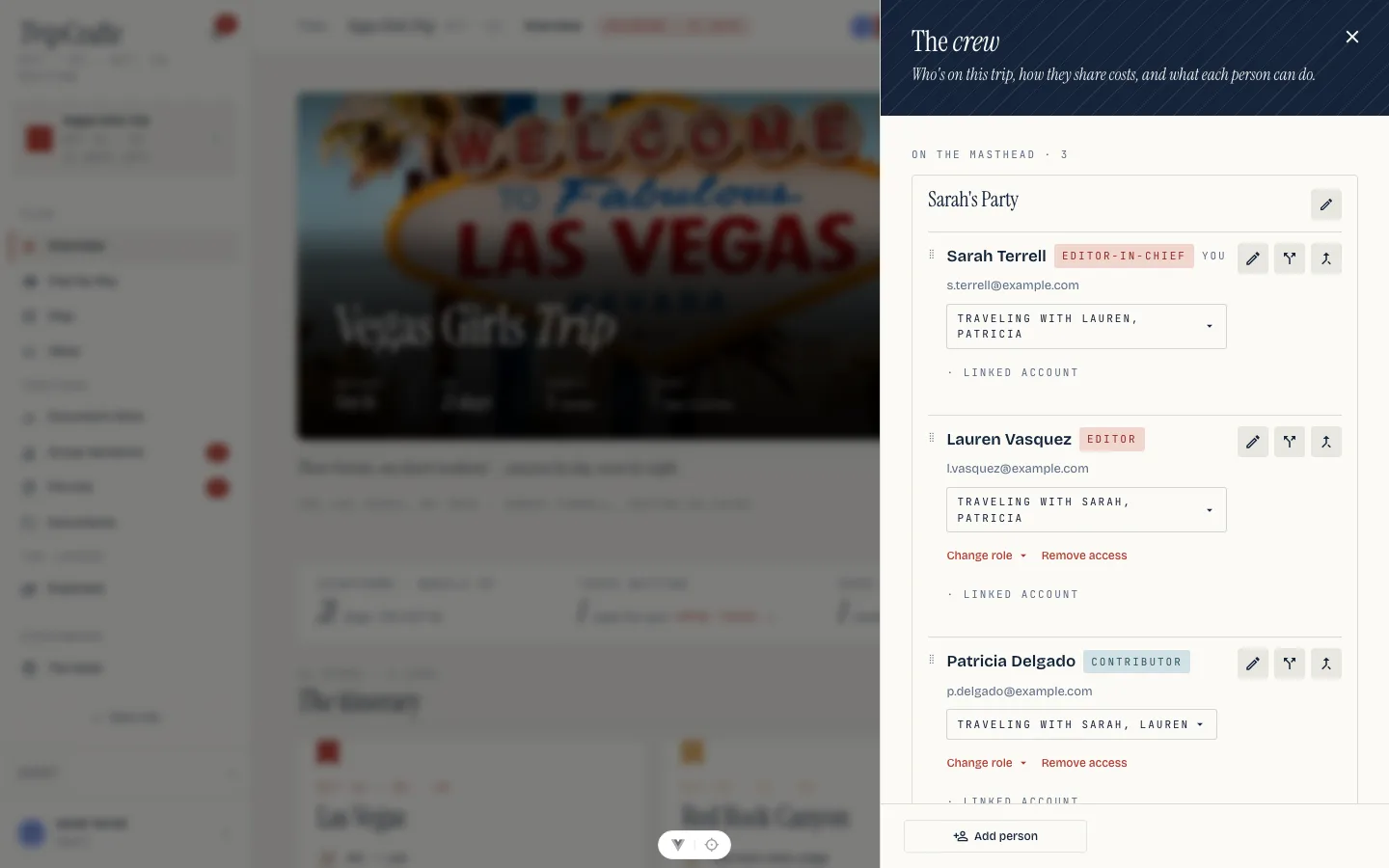
Each person's card carries their role chip, their email, whether they hold an account ("linked user"), the household they belong to, and, for the owner and the editors, the controls: change role, remove, or copy their personal link.
Roles#
| Role | What it allows |
|---|---|
| Owner | The planner who began the wedding. Everything, including the roster, publishing and deletion |
| Coordinator | Full editing and roster control, without a seat: a planner or agent helping run the wedding, never a guest, never in a bill |
| Editor | Full editing of the plan |
| Contributor | Browse everything, add ideas, vote, reply |
| Reader | Read the whole wedding; change nothing |
| Contact | On the roster with no access: a name for bookings, ballots, bills and a reply link |
A reader's app has no add buttons, no edit affordances and no new-task button. The owner and the editors manage the roster; a contributor can add to the plan but not decide who else is on it. A planner or agent added to the roster lands as a coordinator automatically: they work the wedding with an editor's keys and never count as a guest.
The couple are editors. They are the other half of the approval loop, so they need to answer, not just read. What they see is their wedding: what is waiting on them, the weekend, the vendors, the roster and what is owed when. They are not put into your workspace, and they never see your pipeline or your other weddings. See The couple.
Inviting someone#
Two instruments, both from the roster drawer or the share button.
Add person takes a name, an email and an involvement (contact, reader, contributor, editor, coordinator), and on the phone an optional personal note that rides the invitation mail. Someone with an account under that email is on the wedding immediately. Someone without one becomes a pending invitation with a cancel control, and the wedding is waiting for them if they ever sign up. An invitation still pending a few days later is reminded once, the same mail again, personal note included, and never a second time.
The personal link is a link instead of an address. Share this wedding cuts one. The role select decides what the link grants: reader and contributor links invite the holder onto the roster; switching the role re-cuts the link, and switching back reuses the one already minted. A link expires a week after it is cut.
Opening one lands on the invitation page:
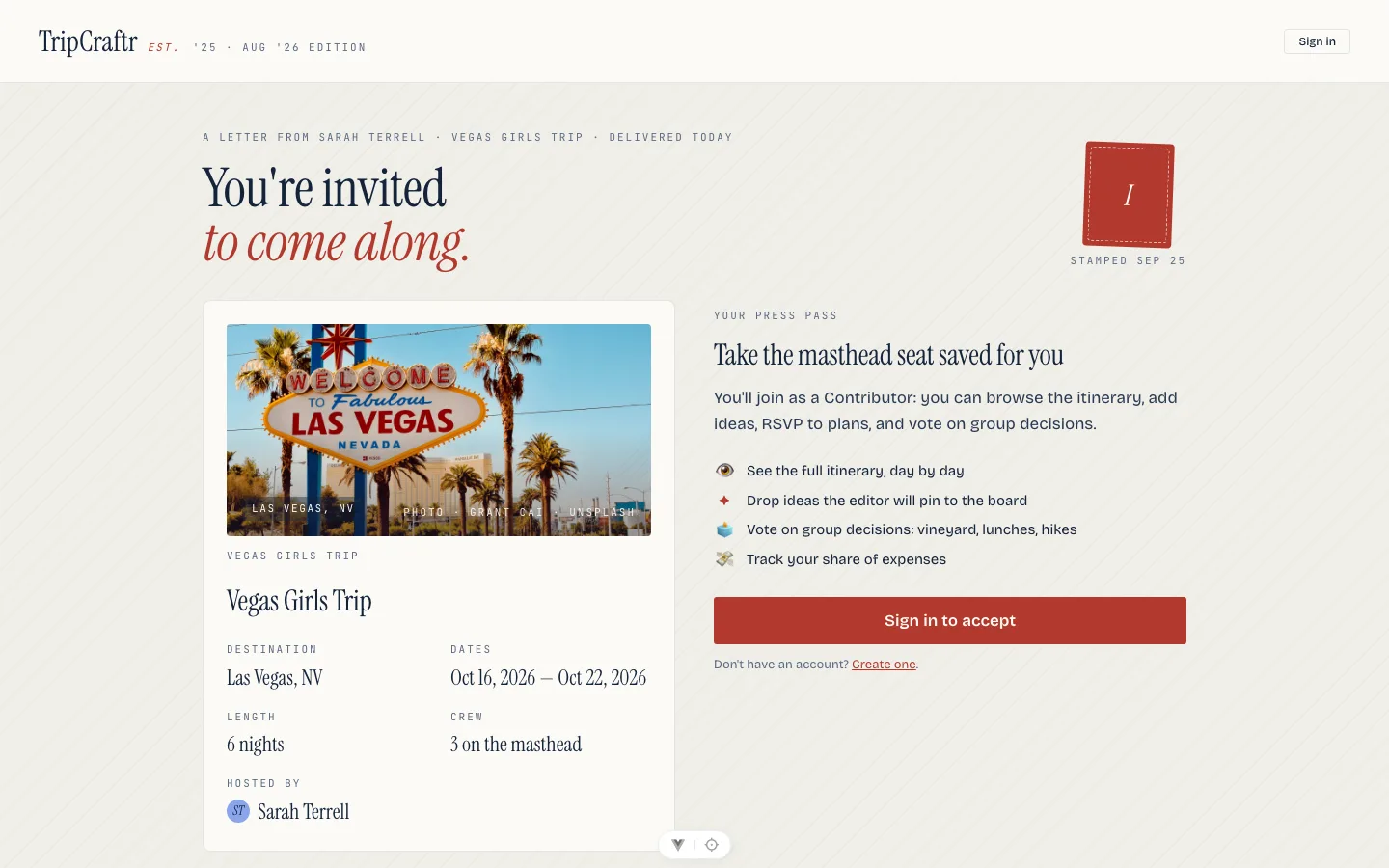
The page names the host, the wedding, the dates, and exactly what the offered role can do. Accept joins (after sign-in or sign-up if needed) and the wedding appears for the newcomer. The page also offers a way to decline: the invitee confirms, the invitation closes, and your roster shows it, no account needed either way. A link that has expired, been revoked, or used all its seats lands on a clear "this invitation has expired" page, with no way through. The owner opening their own link is returned to the wedding.
That sign-up or sign-in is never a WeddingCraftr one. Anyone who joins a wedding this way, the couple included, lands on TripCraftr, the travel app underneath: an ordinary traveler's account, and the wedding opens for them as their own trip there, not as a page on this product. Only you and your team hold a WeddingCraftr account. See The couple.
The couple's own link is the same instrument: Copy their link on the People tab mints it, for handing over however you already talk to them.
#
The roster's Revoke shared links action is the wedding-wide reset. It invalidates every outstanding shared link on the underlying trip at once, including the couple hub, ballot, receipt and related client links. Links you send after the reset work normally, but anything already copied out stops working immediately. Use it when a link has escaped to the wrong person; it is broader than revoking one invitation and cannot be undone by re-sending that old link. The action is available to the people who manage the roster.
Invited before you had an account#
When someone signs up with an email that holds a pending invitation, the wedding is already there when they first sign in, with the role they were given, and your roster shows them as full members. Ballot votes they cast by email before signing up reconcile onto the new account as well.
Households#
A household is the invitation unit. The people who received one envelope answer together, sit together, and share one room. Group people into a household on the roster drawer by dragging them together; the person lands where the highlight said they would. Splitting a household apart is the same drag, reversed.
A household reads as the person it was built around ("Teresa's Party"), and you can rename it to whatever the group is, "The Moreiras" or "Ana's cousins". If that person later leaves, the household goes back to reading as the people still in it.
Households are what the reply page asks once per envelope, what Fill from answers puts into one room, what Seat everyone keeps at one table, and what the ledger uses to answer "what did this side pay". See Guests, Rooms and travel and Seating.
You can also name one person in a household to answer for it, from the same panel where you rename the household: pick anyone in it to name them, or pick the one already named again to clear it. From then on they can correct any expense charged to that household, not only their own entries, which is what two families sharing one ledger were missing. It takes the same hand as the rest of the roster: you or an editor. See The budget.
People without accounts#
A contact needs only a name: an email is optional, an account never required. Guests are contacts, and so are the vendors on the pipeline. Contacts can be attached to itinerary items, carry shares in the ledger, receive email ballots and a personal reply or details link, and be sent a form. Guests never sign in and never make an account; neither do vendors.
Contacts accumulated across weddings can be merged when they turn out to be the same person; merging re-points their bookings and their money in one motion. A vendor with an email address is also filed into your little black book as it is typed, so the florist booked on ten weddings is one row there. See Clients, deals and getting paid.
The team#
A planner on any planner plan can put colleagues on one team: shared weddings, one roster, one subscription, with you as the lead. Solo and the trial seat one colleague beside you; Studio seats as many as the firm needs. A wedding firm's members ride your subscription rather than costing a seat, so there is no per-seat bill.
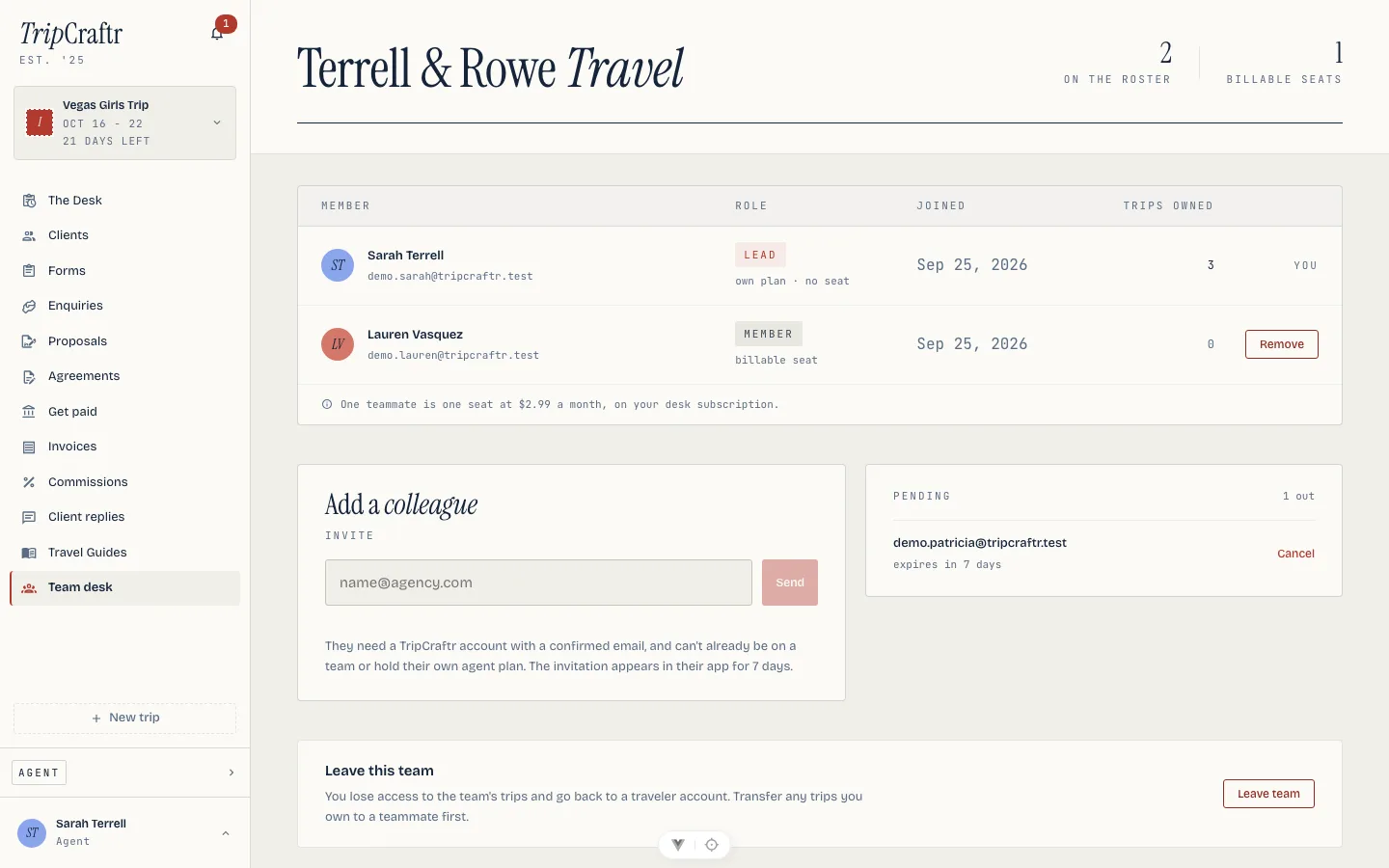
How it runs:
- Create the team (a name, two to eighty characters). Creating requires a live planner plan; the trial can create one too, seating a single colleague.
- Invite a colleague by the email on their confirmed account. Invitations arrive in the app as a banner, not by email, stay answerable for seven days, and can be declined. Nobody already on a team can take a second seat, and neither can someone running a professional plan of their own. You cannot invite yourself.
- Teammates see and plan in every wedding on the team with an editor's keys, without holding a card on any roster. When they leave the team, the access goes with them.
- Removing a member who owns weddings asks where their weddings should go: transfer ownership, then remove. Leaving a team hands the member's account back to an ordinary one; the lead can also disband the team.
Your team reaches your weddings through the team desk and the season board, filtered to Team. The Monday mail and the payment reminders go to the team as well as to you; see Settings and email. On a team the billing profile is the team's, one legal identity and one numbered invoice book across every planner on it; see Clients, deals and getting paid.